Help someone in person
Not everyone has email or a phone, and some people would rather do it together. From a participant's page you can do everything for them on your own screen: fill in their wishes, draw with them beside you, and print a card that tells them who they give a present to.
Open their page
On the group dashboard, click the person's name. The Help ... in person (... persoonlijk helpen) panel has three steps: wishes, draw, card. For someone without email this panel comes first and is highlighted, with the note that you fill in the wishes, draw together on your screen and print the card.
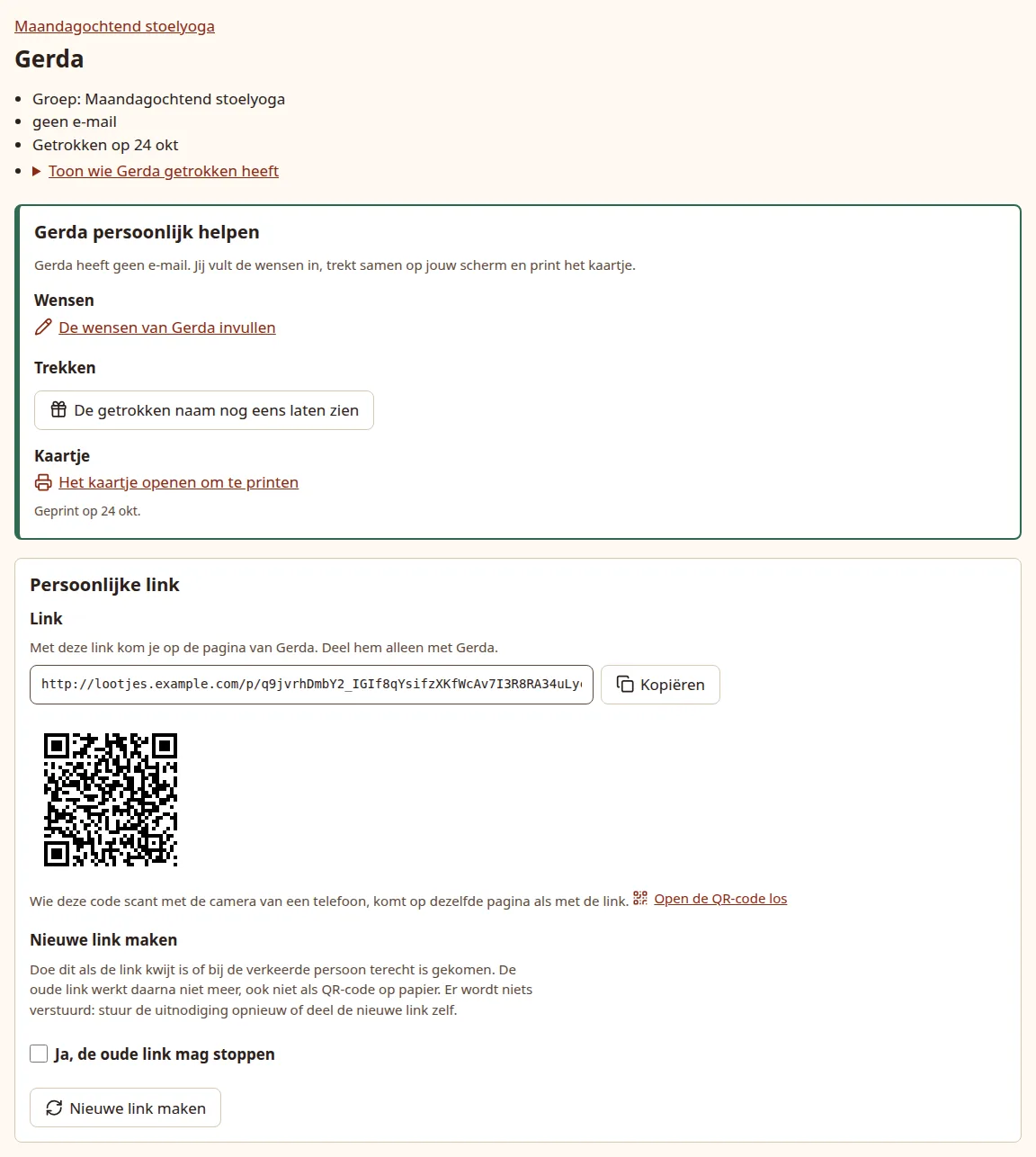
The facts at the top never show who someone gives to before they have drawn; they only say Paired (Ingedeeld). After the draw the name is behind Show who ... drew (Toon wie ... getrokken heeft), which stays closed until you click it. So you can open the page with the person sitting next to you.
Fill in their wishes
Click Fill in the wishes of ... (De wensen van ... invullen). You get the same form the participant sees on their own page, in their language, with a bar at the top saying You are filling this in for ... (Je vult dit in voor ...) and a link back to their page. Press Save (Opslaan); you return to their page with the note The wishes are saved.
Everything is optional, as it is for participants. If the person who gives to them has already drawn, that giver gets a "wishes updated" mail, just as when the participant changes them; see Follow up.
If you changed the questions after opening the form, Save is always refused. If the participant saved their own page after you opened it, Save is refused only when it would change something. Either way nothing is stored and their giver gets no mail: the form comes back with what is saved now, the notice The answers of ... or the questions changed in the meantime, so this page was out of date. Nothing was saved. (De antwoorden van ... of de vragen zijn intussen veranderd, dus deze pagina was niet meer actueel. Er is niets opgeslagen.), and what you typed listed above it under What you had just filled in for ... (not saved) (Dit had je net ingevuld voor ... (niet opgeslagen)). Put what you want to keep in the form and press Save again. A form opened before an update of the app is refused the same way, with This page was out of date, so nothing was saved for ... (Deze pagina was verouderd, dus er is niets opgeslagen voor ...). These notices are in your language; the form and its button stay in the participant's.
Draw together
Once drawing is open for the group, press Draw for ... (Trekken voor ...). Ideally the person sits beside you: the slip comes out of the bowl with the same animation as on their own page, and the name appears on your screen. The bar at the top reads You are looking on with ... (Je kijkt mee met ...).
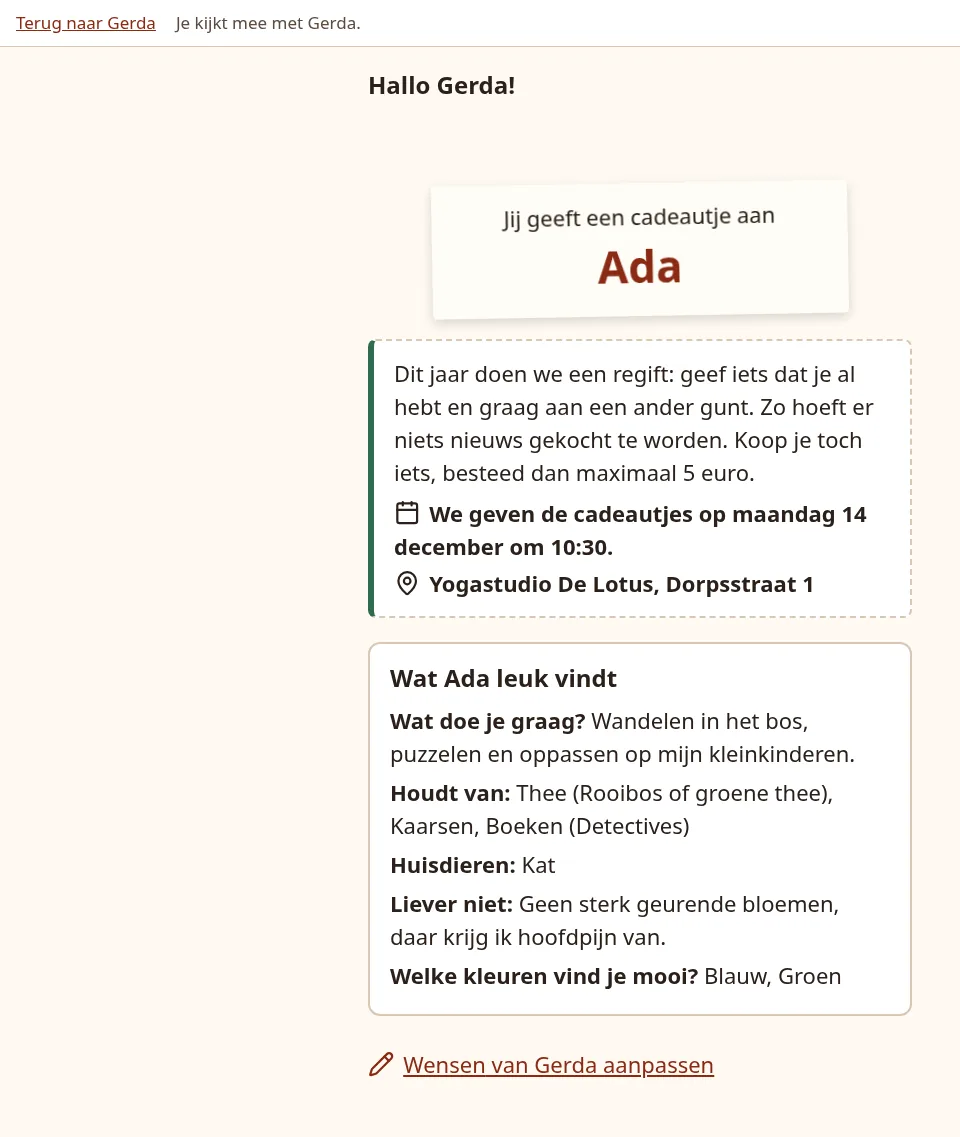
This counts as their draw, exactly as if they had pressed the button themselves. Afterwards the button reads Show the drawn name again (De getrokken naam nog eens laten zien) and shows the result without the animation. Before the group opens, the panel says drawing is not open yet. Opening the address of the draw page again later, from a bookmark or a restored tab, takes you back to the person's page; press the button there to see the name again.
Print a card
After the draw, click Open the card to print (Het kaartje openen om te printen). The card says who it is for, who they give a present to, the theme, the date, time and place of the exchange, and what their person likes, in the participant's language.
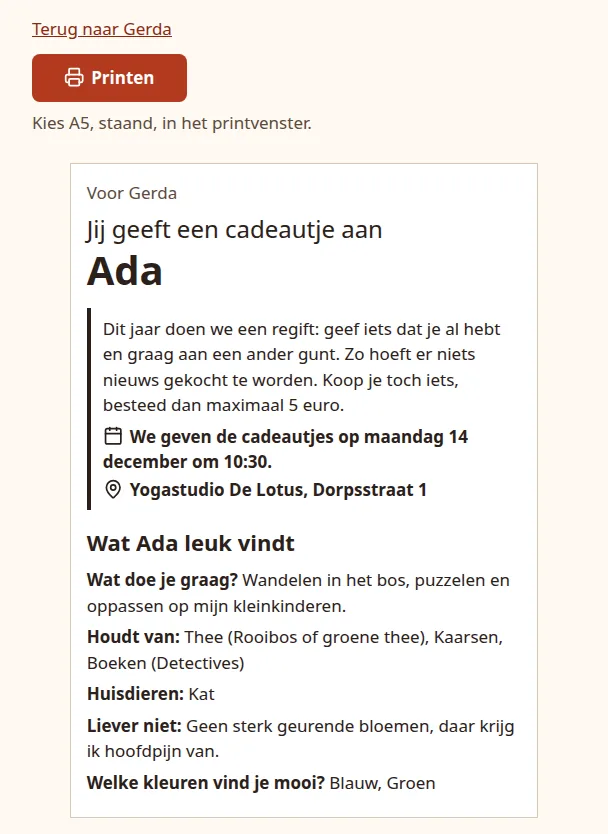
Press Print (Printen) and choose A5, portrait, in the print window. The buttons above the card are left off the paper. Long wishes, or many answered questions, make the type smaller so the card stays on one sheet. A form with many questions that have long wording can still need a second sheet, so check the preview in the print window.
Pressing Print records the card as printed, even if you then cancel the print window. The person's page shows Printed on ... and the dashboard's Printed card (Geprinte kaart) column says Up to date (Klopt nog).
When a printed card goes out of date
The dashboard switches a card to Print again (Opnieuw printen), and the card page explains that something changed since the last print, when:
- their person changes their wishes or is renamed;
- they get a different person, because someone joined or dropped out;
- the group's date, time or place changes;
- the event's theme changes, or anything in its wish form: a question, its wording or order, whether it is shown, or its choices.
The card always shows the current details, so printing it again is enough.
Someone with a phone but no email
Show the QR code from the Personal link panel and let them scan it with their phone camera. It opens their own page, and they can take it from there.
Next: changes after opening.