Send the invitations
Every participant has a personal link, such as https://gifts.example.com/p/ followed by a long random code. The link is the key to their page: no account or password is needed. Inviting people means getting that link to them, so they can say what they like before drawing opens.
You have to do this step once per group, even when nobody in it has email: drawing can only open after it.
With sign-up, this step waits
While the event's sign-up runs, the dashboard shows Sign-up is on. Inviting and drawing come after it. instead of the Invitations panel, and nobody can be invited, also not from a person's own page. When you start the draw, the invitations go out for every group at once, so you do not press Send invitations yourself. Everything below applies again from then on.
With email on
On the group dashboard, the Invitations (Uitnodigingen) panel says how many participants with email have no invitation yet. Press Send invitations (Uitnodigingen versturen).
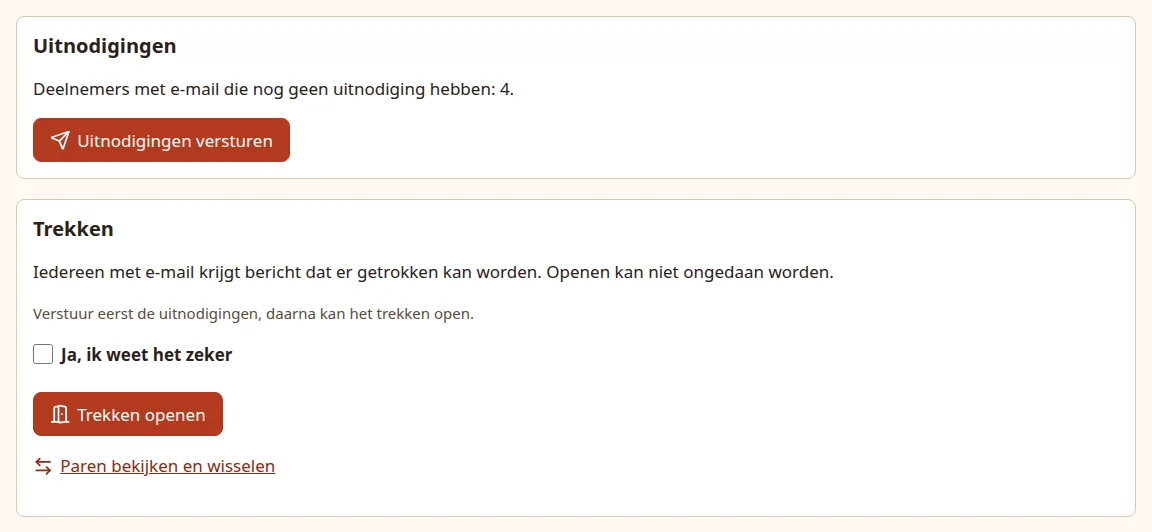
What happens:
- Everyone with an email address gets a welcome mail in their own language. The mails go out a few seconds apart, so in a large group the last ones can take some minutes. The subject is "Gift Draw: Tell us a little about yourself" (Lootjes trekken: Vertel iets over jezelf). It has a big Go to my page button, the exchange date, the theme, and the link written out. See the mails participants get.
- The dashboard notes Invitations sent on ... and the Invited (Uitgenodigd) column shows each mail's state: Queued (In de wachtrij), Sent (Verstuurd), Failed, retrying (Mislukt, wordt opnieuw geprobeerd) or Failed (Mislukt). People without email show Not applicable (Niet van toepassing).
- Nothing is sent to people without email. Give them their link yourself, see below, or help them in person.
Right after the press, the panel says ... of ... invitations have been sent. (... van ... uitnodigingen zijn verstuurd.), the same number as ... of ... with email invited (... van ... met e-mail uitgenodigd) above it; both count only mails that have actually gone out, plus people the table already shows as invited without a mail, such as those whose links you shared while email was off, or whose invitation was dropped because they had already drawn. Reload the page after a minute: once every invitation is sent, the panel says Everyone with email has been invited. (Iedereen met e-mail is uitgenodigd.). If an invitation failed for good, the panel adds how many and points you to the table (Bij ... is het versturen mislukt; kijk in de tabel hieronder.); see When a mail fails.
People you add to the group after this get their invitation automatically when you add them. The button comes back only when someone with email is still uninvited, for example after you gave a person an email address later; pressing it again sends only those missing invitations, never a second copy to people already invited.
With email off
When the app runs without a mail server, the dashboard shows Email is off: share the links yourself. and the button reads The links have been shared (De links zijn gedeeld).
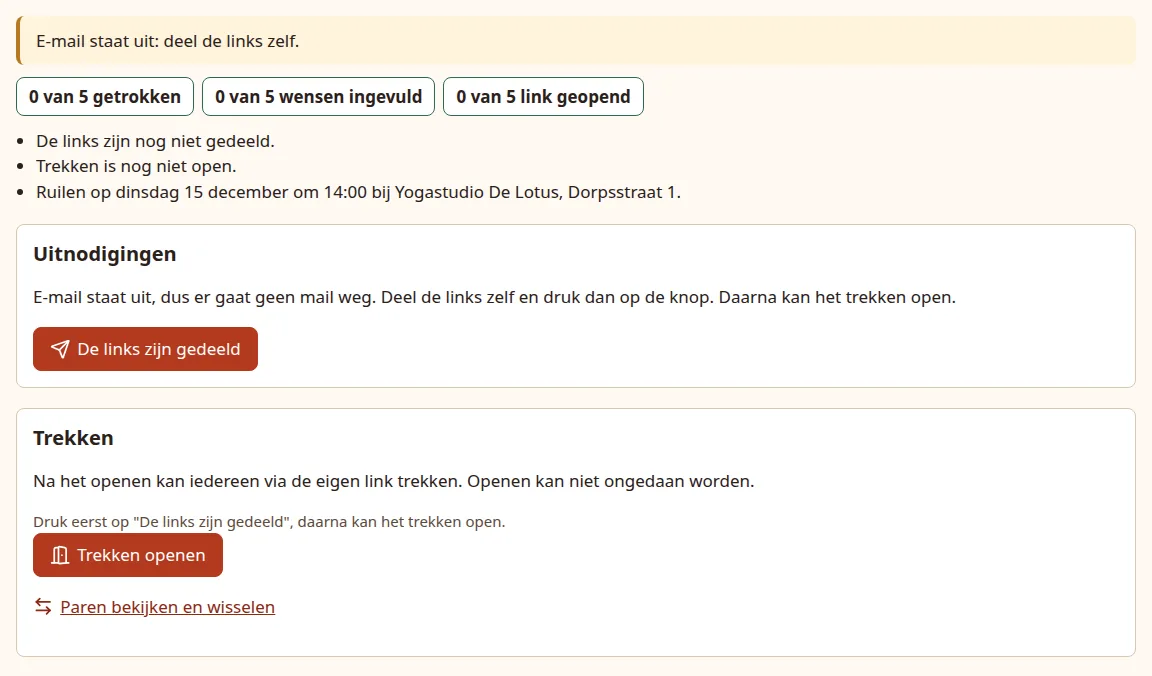
- Share each person's link yourself, see below.
- Press The links have been shared. It sends nothing; it records that the group may open.
Afterwards the panel says you marked the links as shared. Give anyone who joins later their link yourself.
Share a link yourself
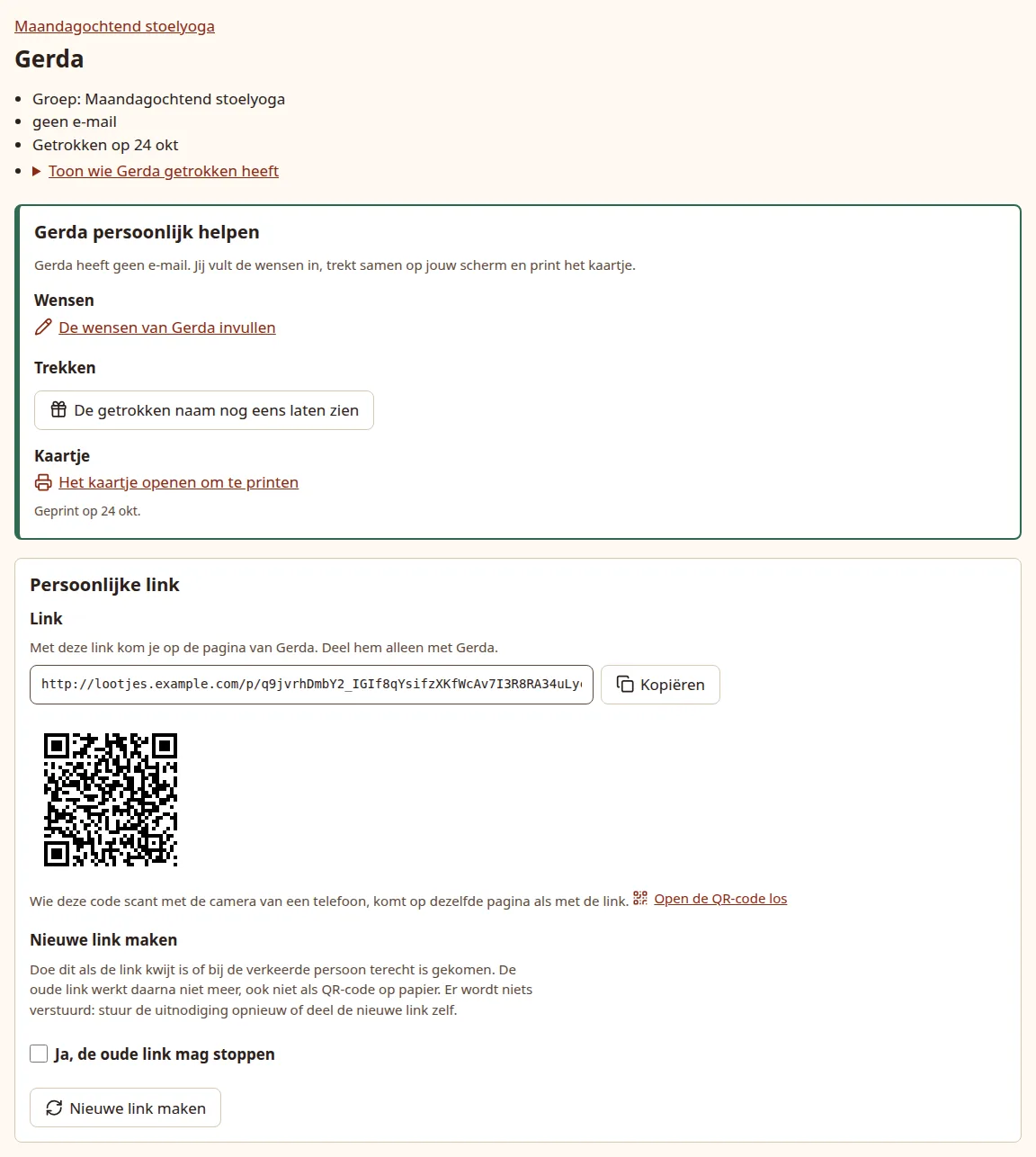
Click a name in the participants table to open their page. The Personal link (Persoonlijke link) panel has three ways to pass the link on:
- Copy (Kopiëren) the link and send it in a message.
- Show the QR code on your screen, or open it on its own with Open the QR code on its own (Open de QR-code los) to print it. Scanning it with a phone camera opens the same page as the link.
- After the person has drawn, print their card, which needs no link at all.
Each link belongs to one person
Anyone who has the link sees that person's page, and after the draw who they give a present to. If a link reaches the wrong person, make a new one: see Changes after opening.
How you know someone has seen it
The Link opened (Link geopend) column shows the date someone first opened their page. With email on, the column header adds "(may include mail scanners)": some mail systems open every link in a mail to check it for danger, which can count as opened before the person ever looked.