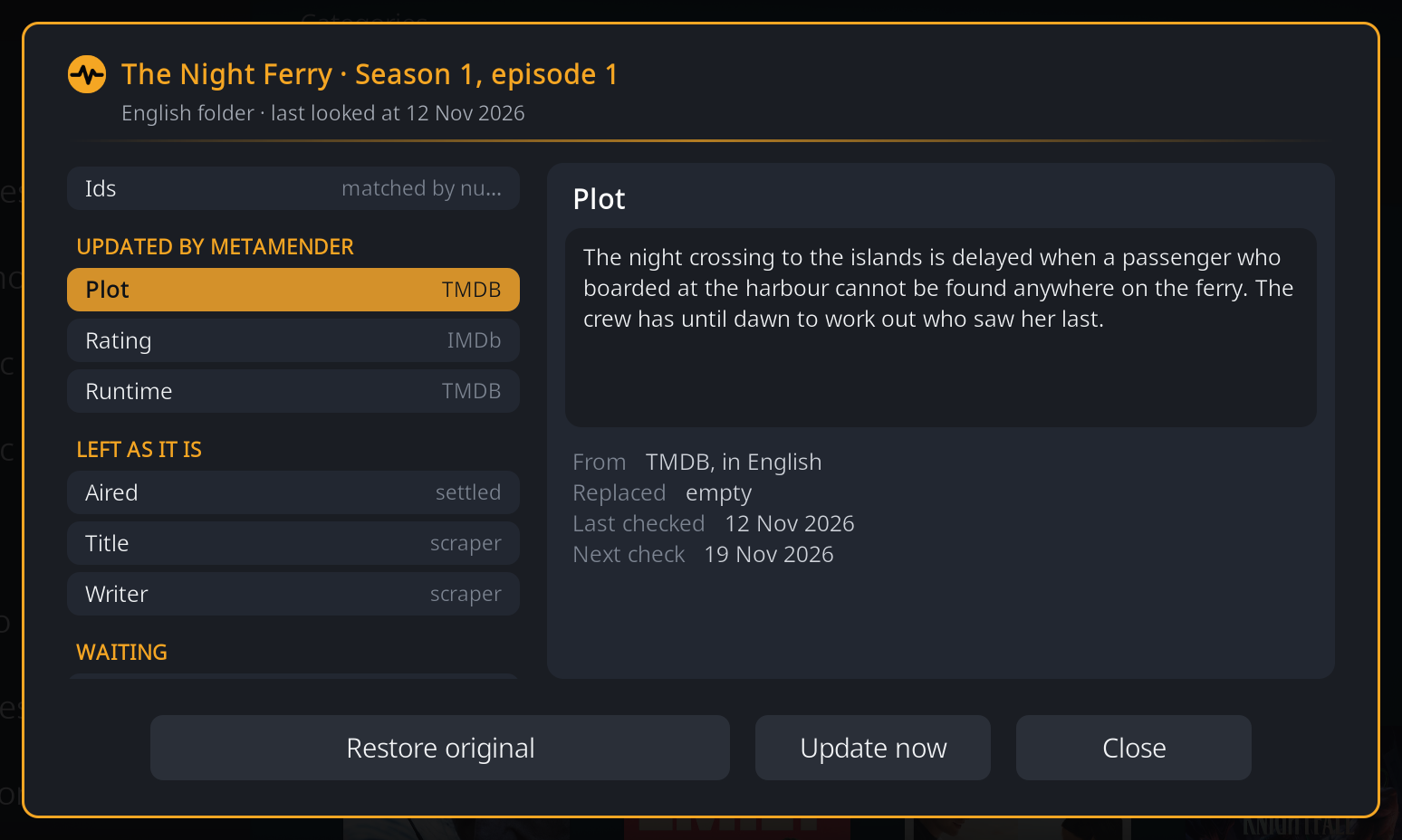
The Details window
The Details window answers "why does this field look like this?" for one movie, TV show or episode: where each value came from, what it replaced, when MetaMender last checked it and when it checks again, and why it left a field alone. Opening it changes nothing.
Opening it
Open the context menu of a movie, show or episode in your library and choose MetaMender > Details. (Seasons have no fields of their own, so they have no Details.)
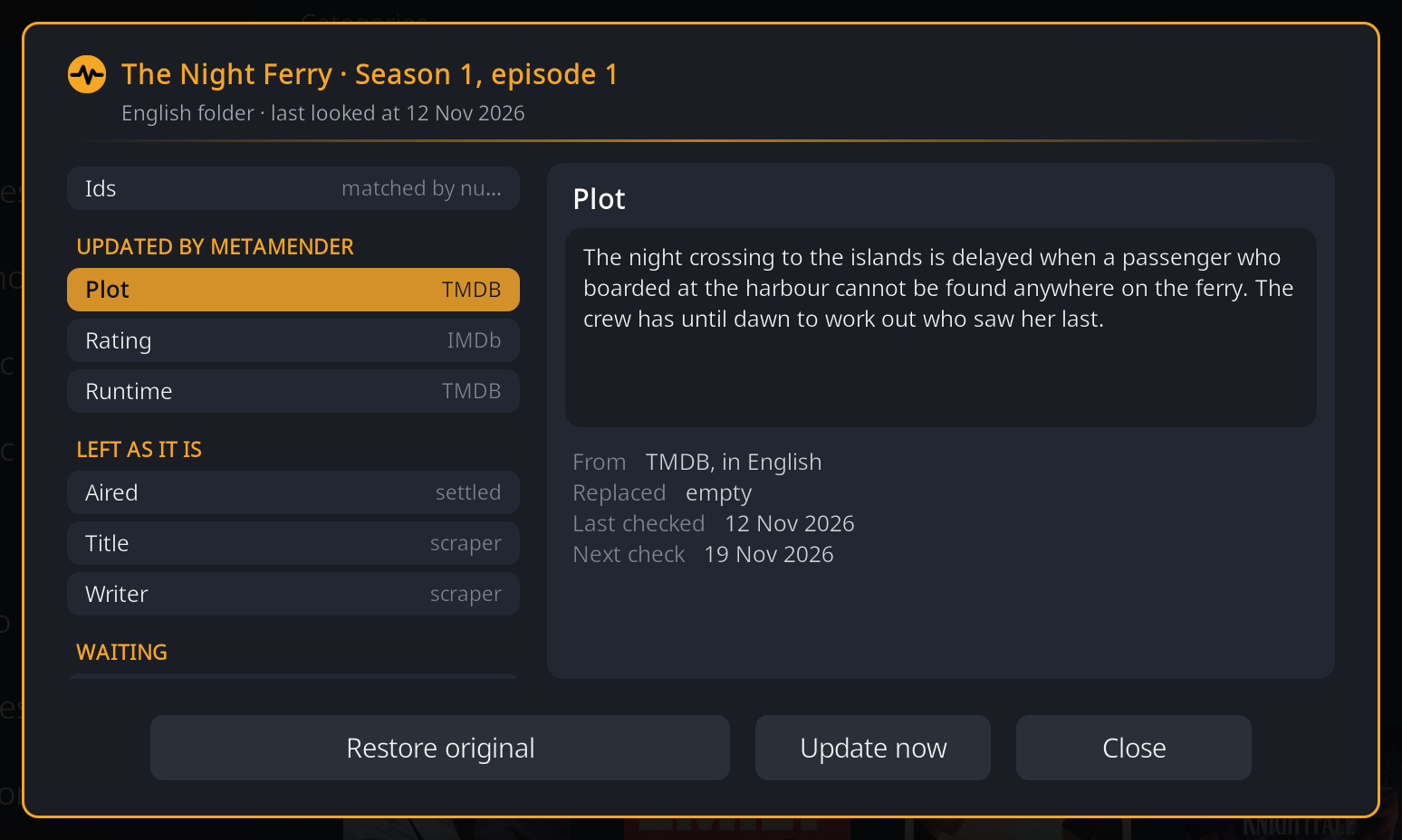
At the top is the item and one short line: the language of its folder and when MetaMender last looked at it. On the left is a list of the fields; the right side tells the story of the one you have selected. Move up and down the list with the remote, and right to reach the buttons.
The list
The first entry is Ids; below it the fields are grouped by what happened:
- Updated by MetaMender: MetaMender wrote this value. The hint on the right says where it came from (TMDB, TheTVDB, IMDb, or a country's age rating site).
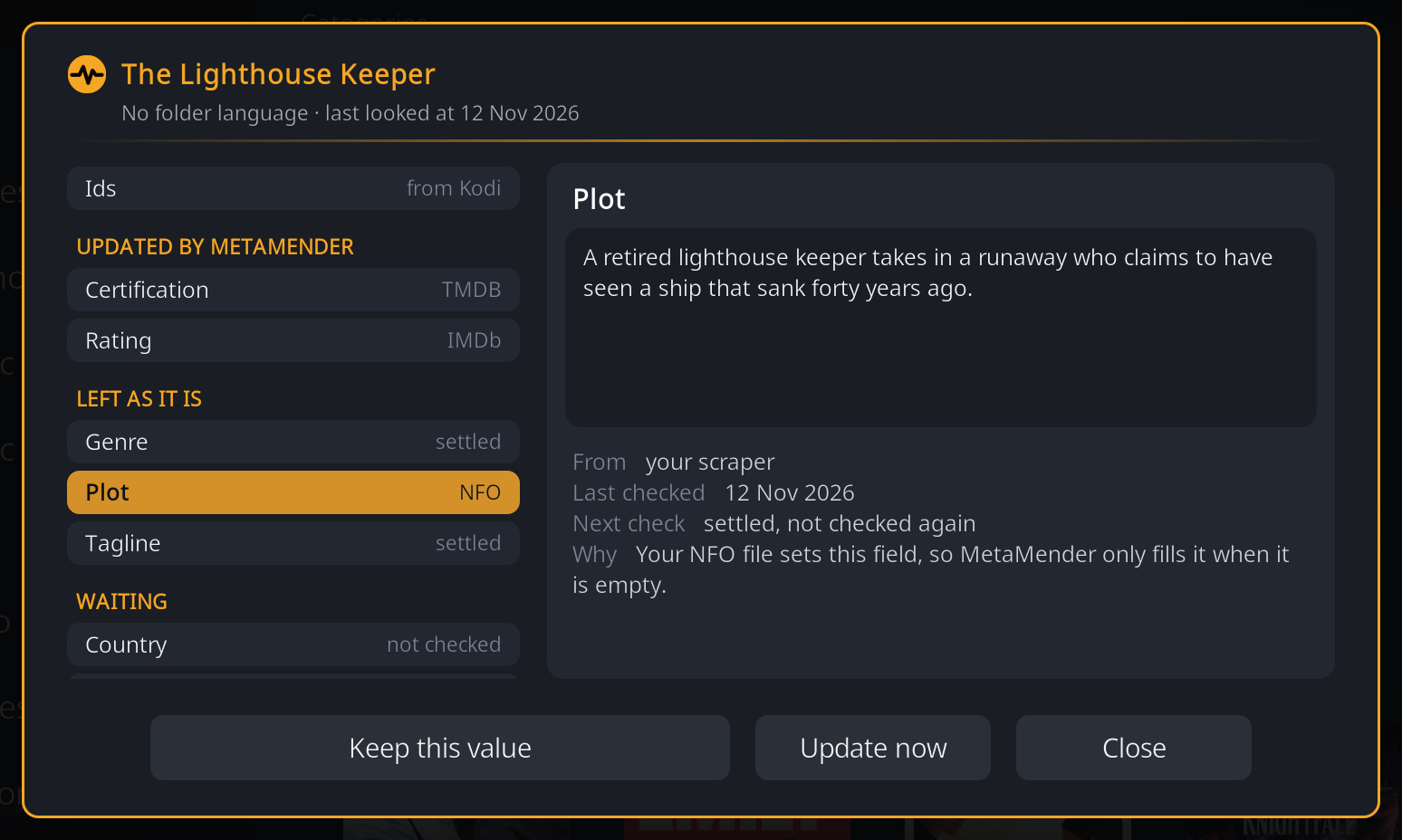
- Left as it is: MetaMender looked and left the value alone. The hint says why in one word, for example scraper (the value your scraper set), NFO, settled or locked (with a padlock).
- Waiting: there is nothing to show yet: the field is empty, has not been checked, or will be filled at the next scan. The hint gives the date of the next check, or not checked or next scan.
A field's story
Select a field to see on the right:
- The whole current value, or Empty.
- From: where the value came from, and in which language, for example "TMDB, in English". "In the fallback language" means it came from the fallback language because your library language had none.
- Replaced: what the field held before MetaMender first wrote it: your scraper's value or empty. Items MetaMender updated before it started keeping old values say so.
- Last checked and Next check: the dates, or settled, not checked again once the field is settled (see Scans).
- Why, for a field left alone or waiting.
Why a field was left alone
| The window says | What it means |
|---|---|
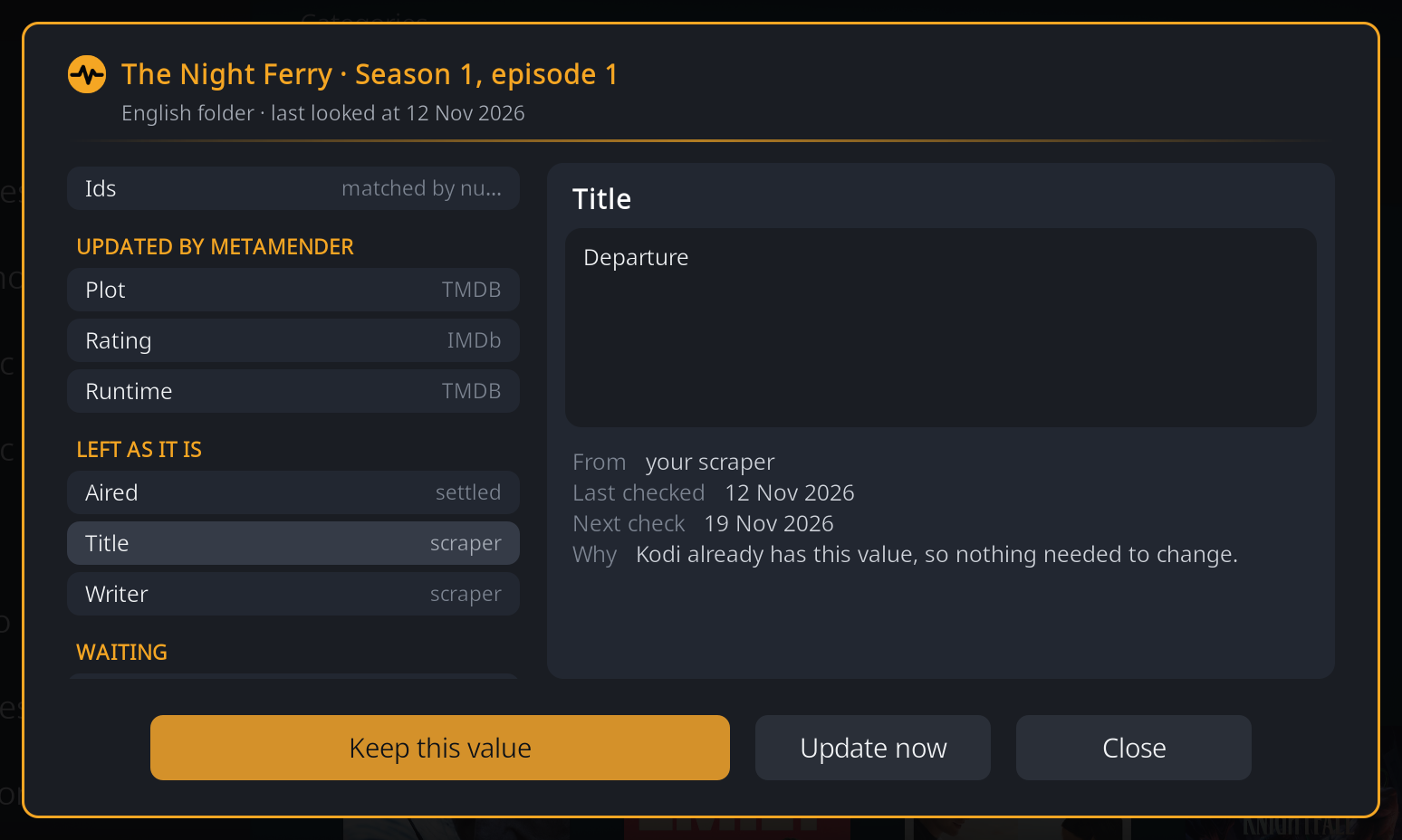
| Kodi already has this value, so nothing needed to change. | The sites agree with what is there. |
| Your NFO file sets this field, so MetaMender only fills it when it is empty. | The item has an NFO file, so its values are yours: MetaMender only fills fields that are empty, and never overwrites a value it did not write. |
| This folder has no language set, so MetaMender only fills empty fields and keeps this value. | Without a folder language MetaMender cannot tell whether existing text is in the right language, so it keeps it. Set the folder's language in setup. |
| The sites MetaMender asks have nothing for this field yet. | TMDB and TheTVDB have no value; MetaMender checks again later. For an old item that is settled: "had nothing for this field". |
| The sites could not be reached at the last check, so MetaMender tries again. | A temporary problem; the next scan tries again. |
| You locked this field, so MetaMender leaves it alone. | See Restore original and the lock. |
| Changed since MetaMender's update (your edit or a re-scrape). | Someone or something changed the value after MetaMender wrote it. |
| Kodi lost MetaMender's value (a refresh or a re-scrape), so the next scan fills it again. | The field was emptied, for example by refreshing the item in Kodi. |
A field that is switched off in the settings (for example Credits) says so instead of promising a next check.
Ids
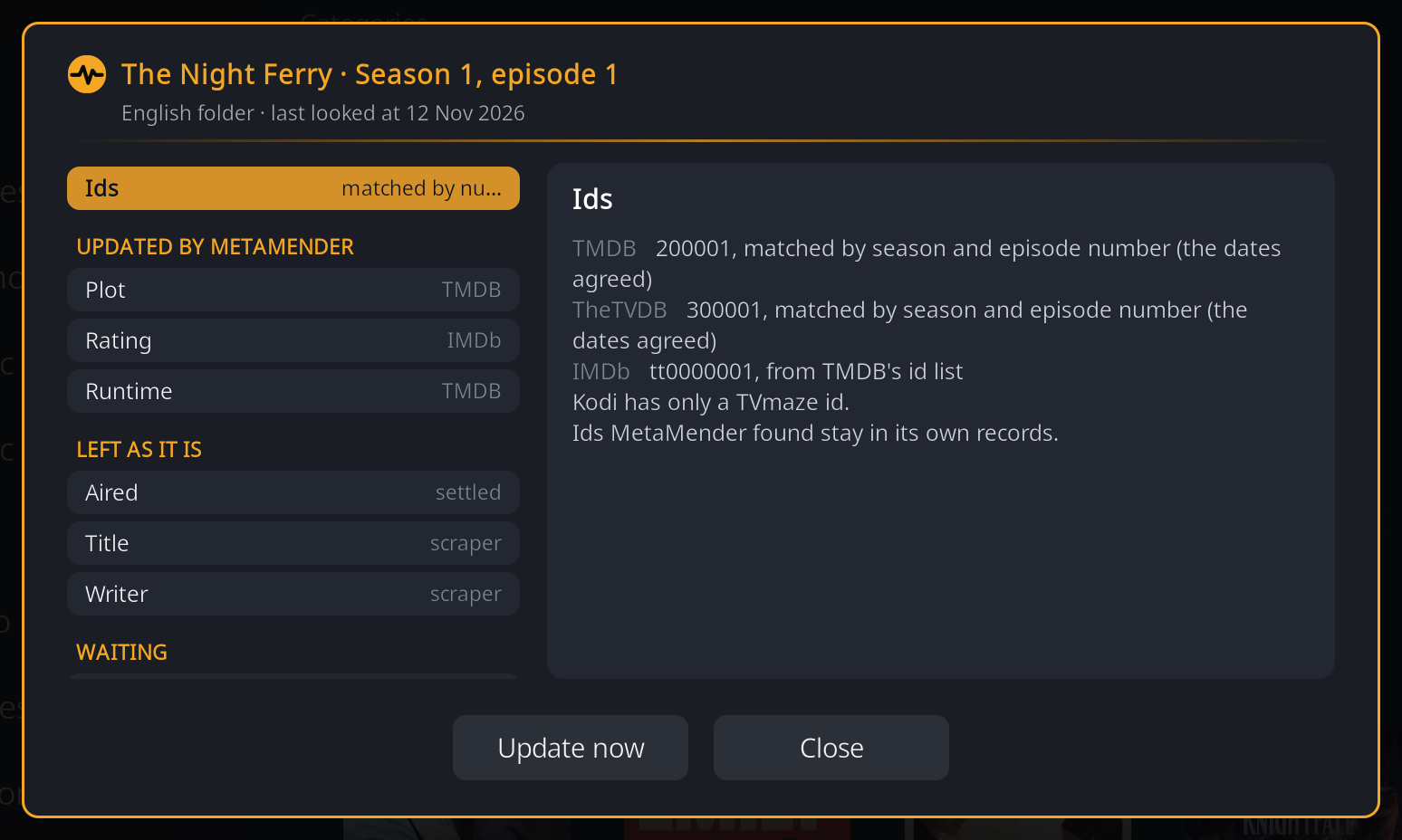
The Ids entry lists the item's TMDB, TheTVDB and IMDb ids and how each was found:
- from Kodi: your scraper stored it.
- found by MetaMender or from TMDB's id list: MetaMender looked it up.
- matched by season and episode number: for an episode your scraper gave no id for (common with TVmaze), MetaMender found it by its season and episode number, and only because the air date or the title agreed. "The dates agreed" or "the titles agreed" says which.
Ids MetaMender found stay in its own records; it does not add them to Kodi.
When an episode's number points at a different episode on TMDB or TheTVDB (the title and the date both disagree), MetaMender uses nothing from that site and shows both versions side by side, so you can see why:
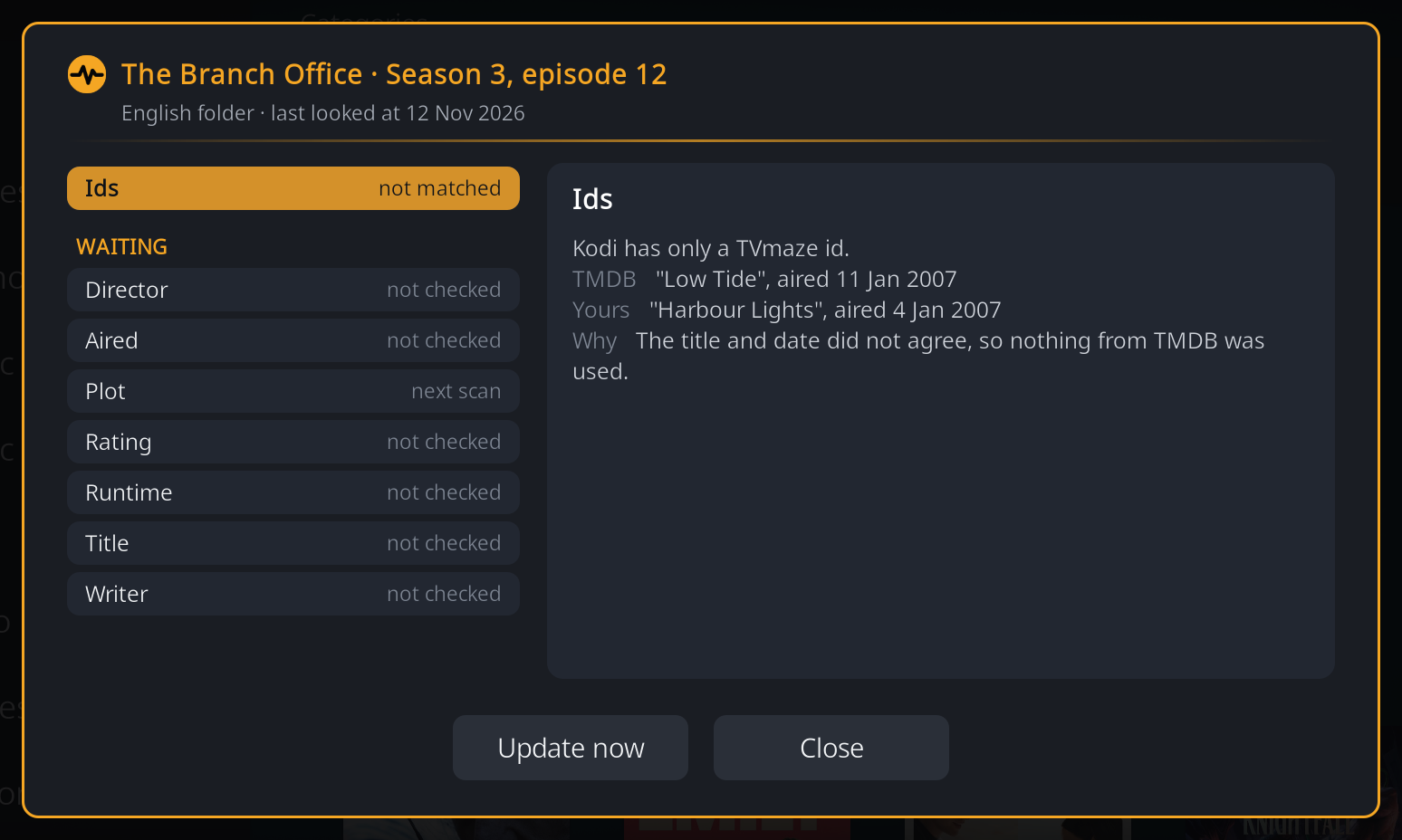
A wrong match is worse than none: an episode with the wrong plot is harder to notice than one with no plot.
Restore original and the lock
A field can be locked: MetaMender then leaves it alone, in scans, in Update now and after a settings change. There are two ways to lock one, and the button under the field shows the one that applies.
Keep this value
Keep this value locks the field exactly as it is now. Use it for a value you corrected by hand in Kodi, or a value from your scraper you prefer to what the sites say. Nothing in Kodi changes; MetaMender just stops checking the field.
Restore original
When MetaMender replaced a value and kept the old one, the field has a Restore original button instead.
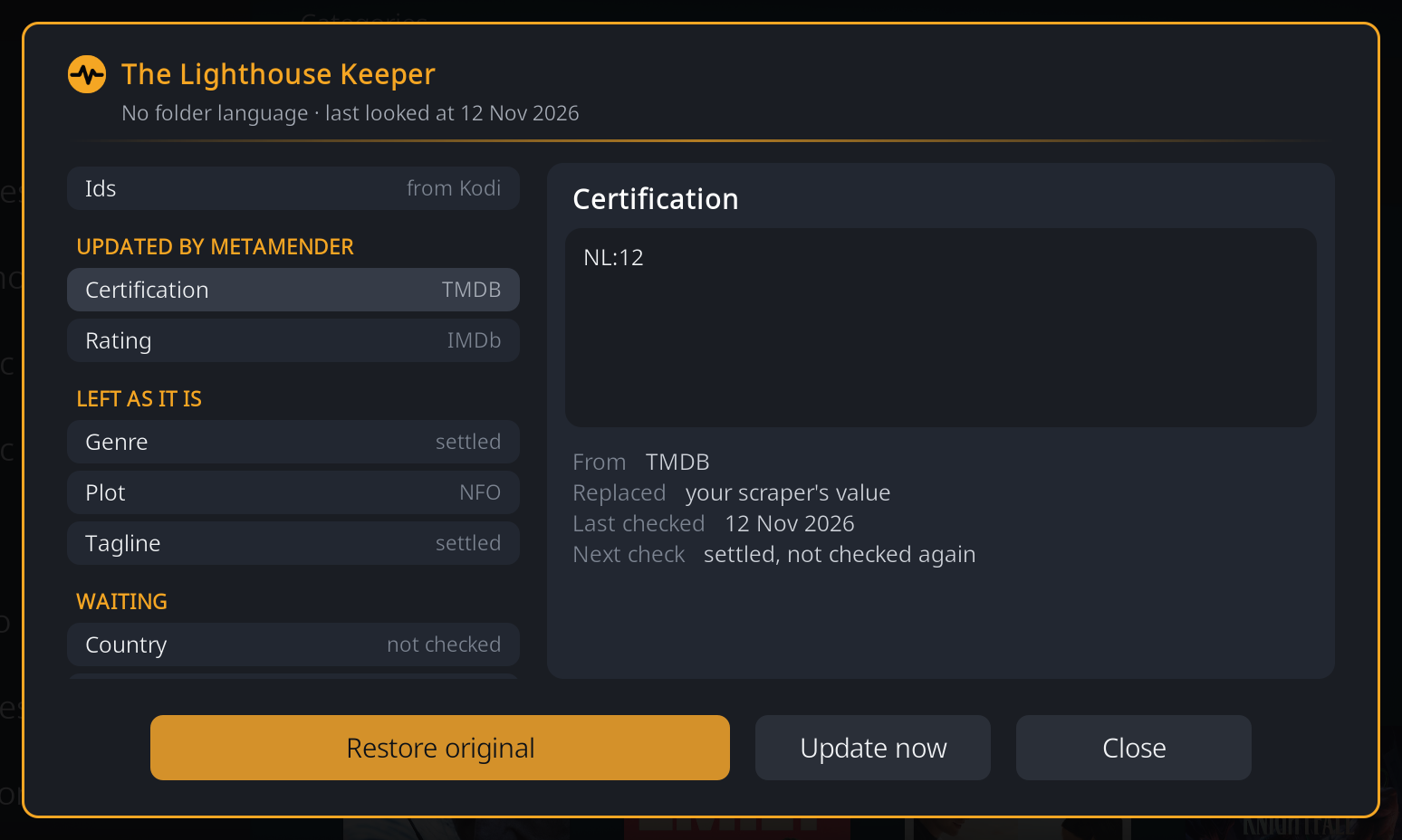
Restore original writes the old value back to Kodi and locks the field. If the old value was empty (MetaMender filled an empty field), restoring empties the field again and locks it, for example for a trailer or tagline you do not want.
Unlocking
A locked field has a padlock beside it in the list, and shows Let MetaMender update this again. That removes the lock; MetaMender checks the field at the next scan and may update it again.
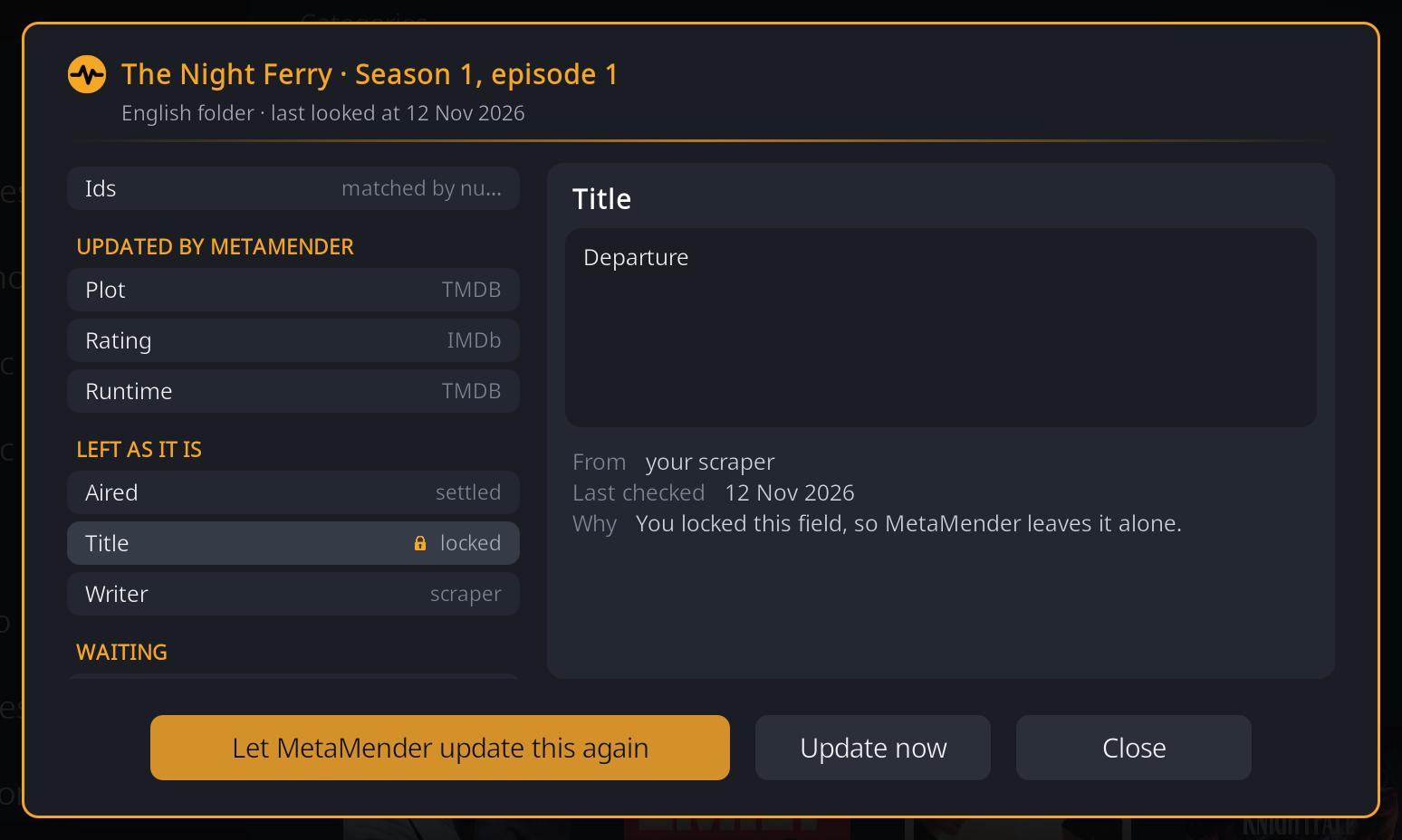
Restore is only offered while the field still holds the value MetaMender wrote, so it never overwrites a newer value of your own or from a re-scrape. Ratings cannot be locked or restored: MetaMender adds its own rating entries beside your scraper's, which stay. A field switched off in the settings has no button, since MetaMender does not touch it anyway.
Restoring a show's title also moves MetaMender's records of its episodes along with it; should that fail, a notification says so.
Update now and Close
Update now refreshes the item as Update now in the context menu does, and the window shows the result in place. Close (or Back) closes the window.
Colours
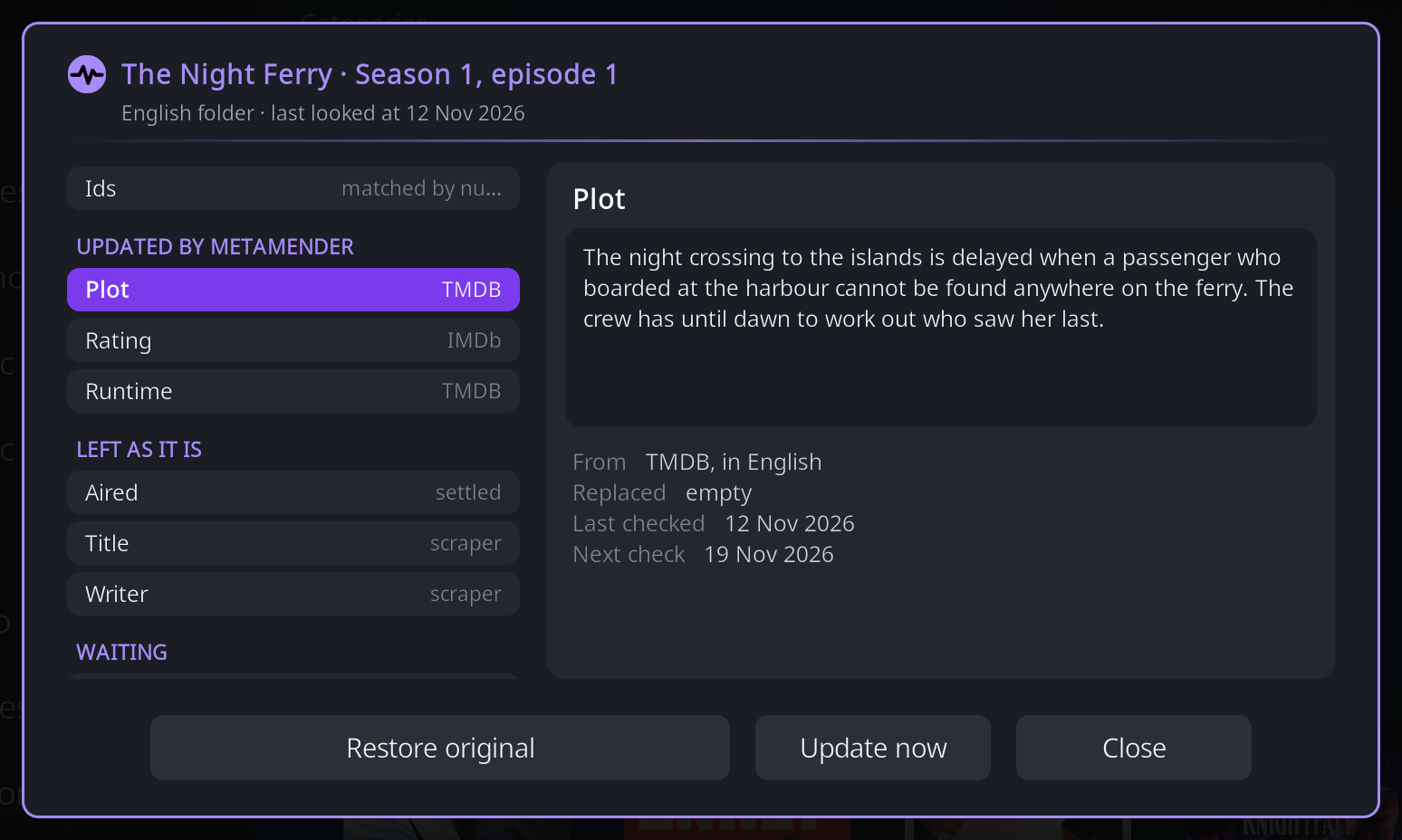
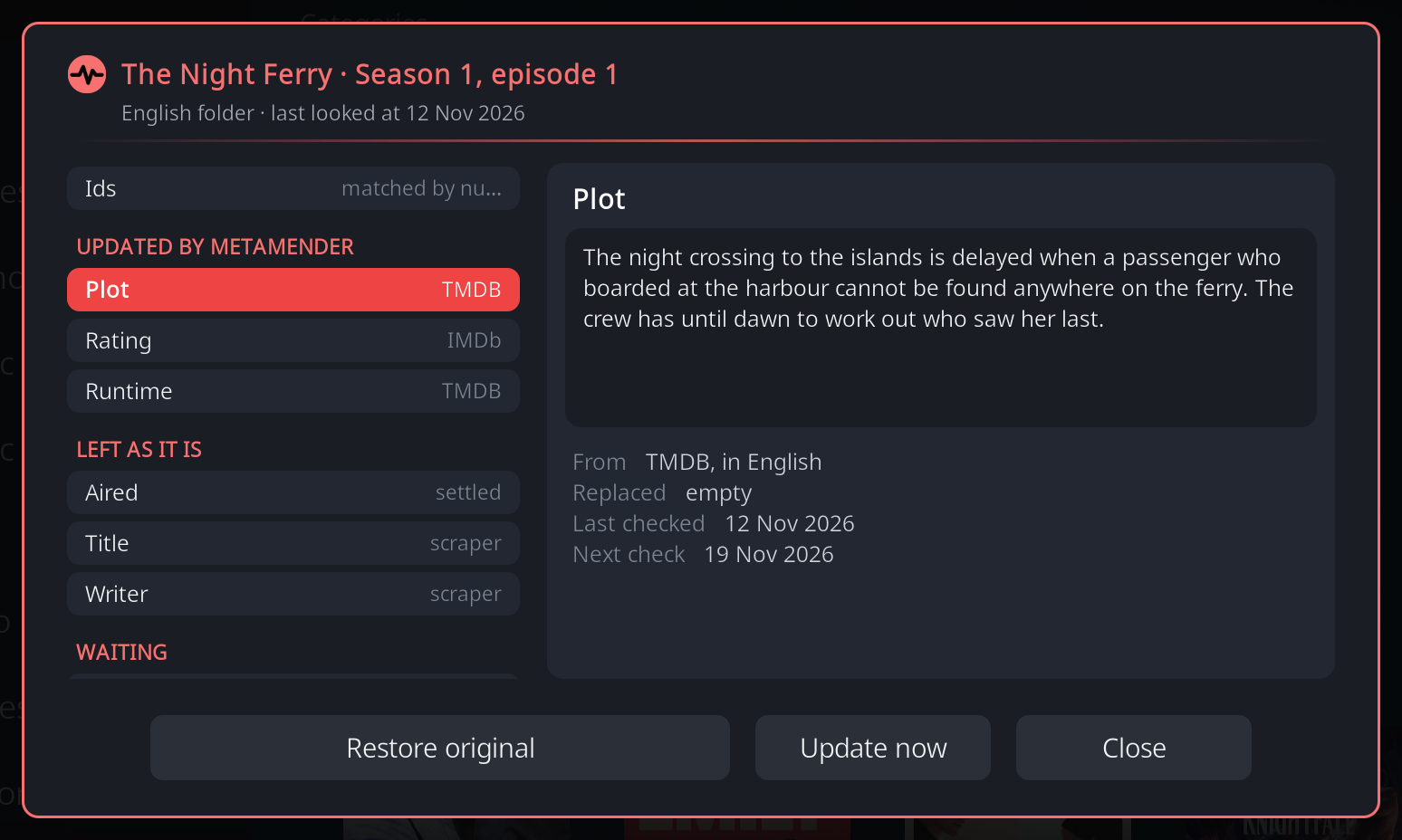
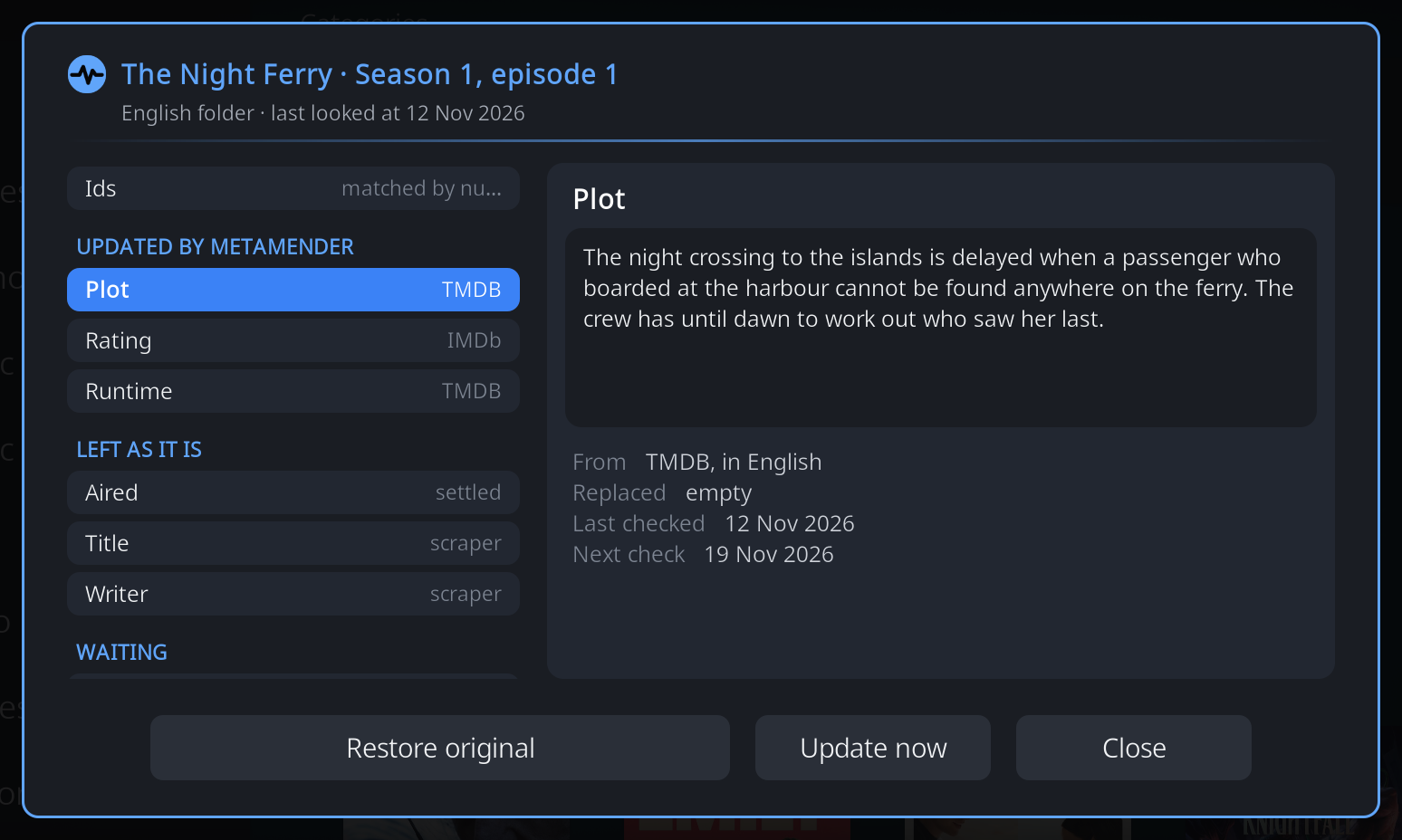
The window, like MetaMender's other windows, comes in four colour schemes: Golden Hour, Ultraviolet, Ember and Nightfall. Choose one with Window colours under Appearance on the General tab of the settings. The add-on's icon and notifications stay amber.