Browse Mode
Browse Mode displays your filtered movie selection in a visual layout. You're in control - scan the results, pick what catches your eye, and start watching.
How It Works
- Run through the Filter Wizard - Narrow your library by genre, rating, runtime, and more
- EasyMovie selects random matches - A configurable number of movies (1–50) are pulled from the filtered pool
- Browse the results - View them in your preferred layout
- Pick a movie - Select one to start playing, or use Re-roll / Surprise Me
View Styles
EasyMovie offers five visual layouts. Change via Settings > Browse Mode > Appearance > View style.
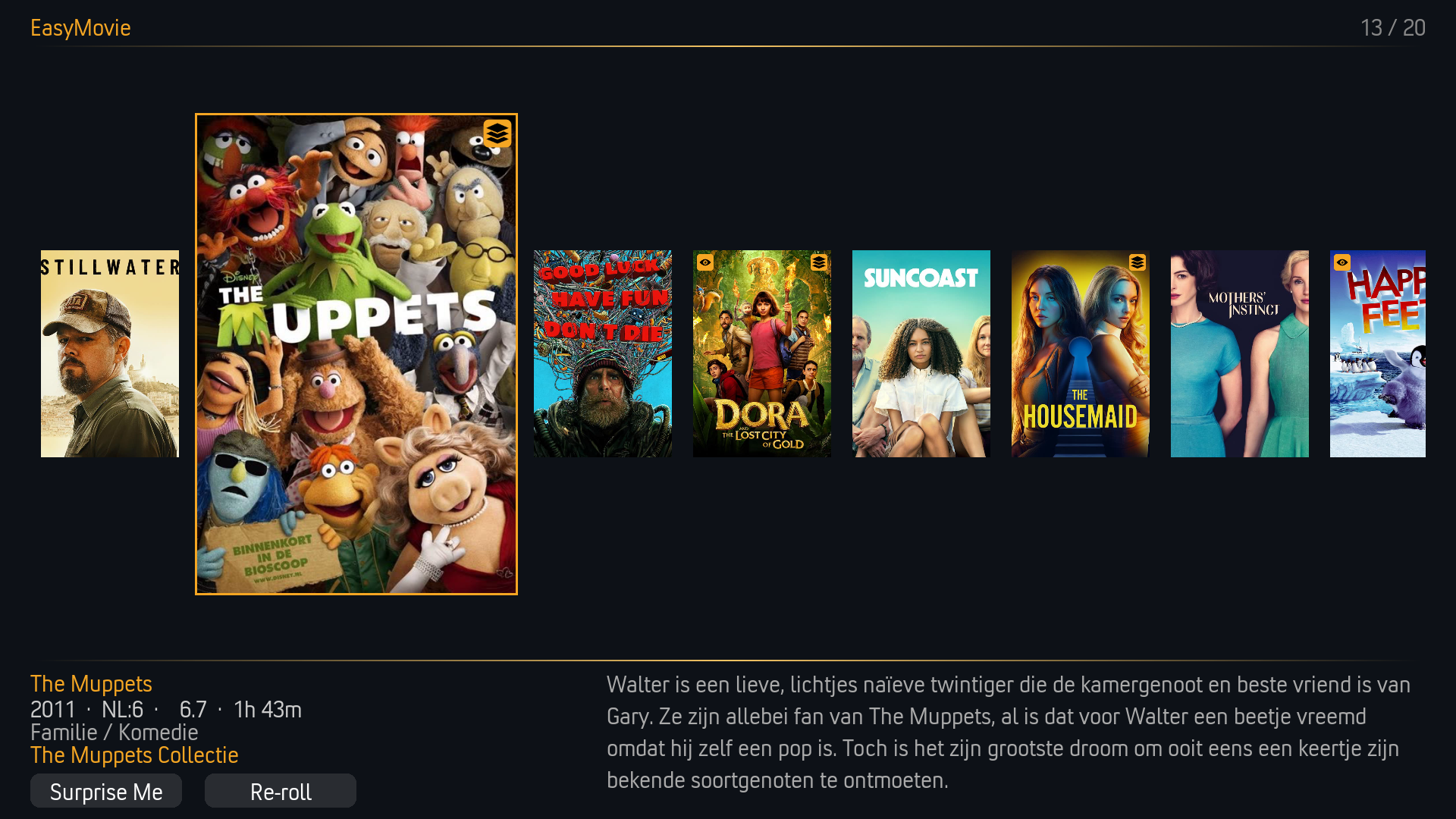
Showcase (Default)
A horizontal filmstrip carousel with a large fanart backdrop. The focused movie fills the background with its artwork while details appear in the foreground.
Best for: Immersive browsing with a rich visual experience.
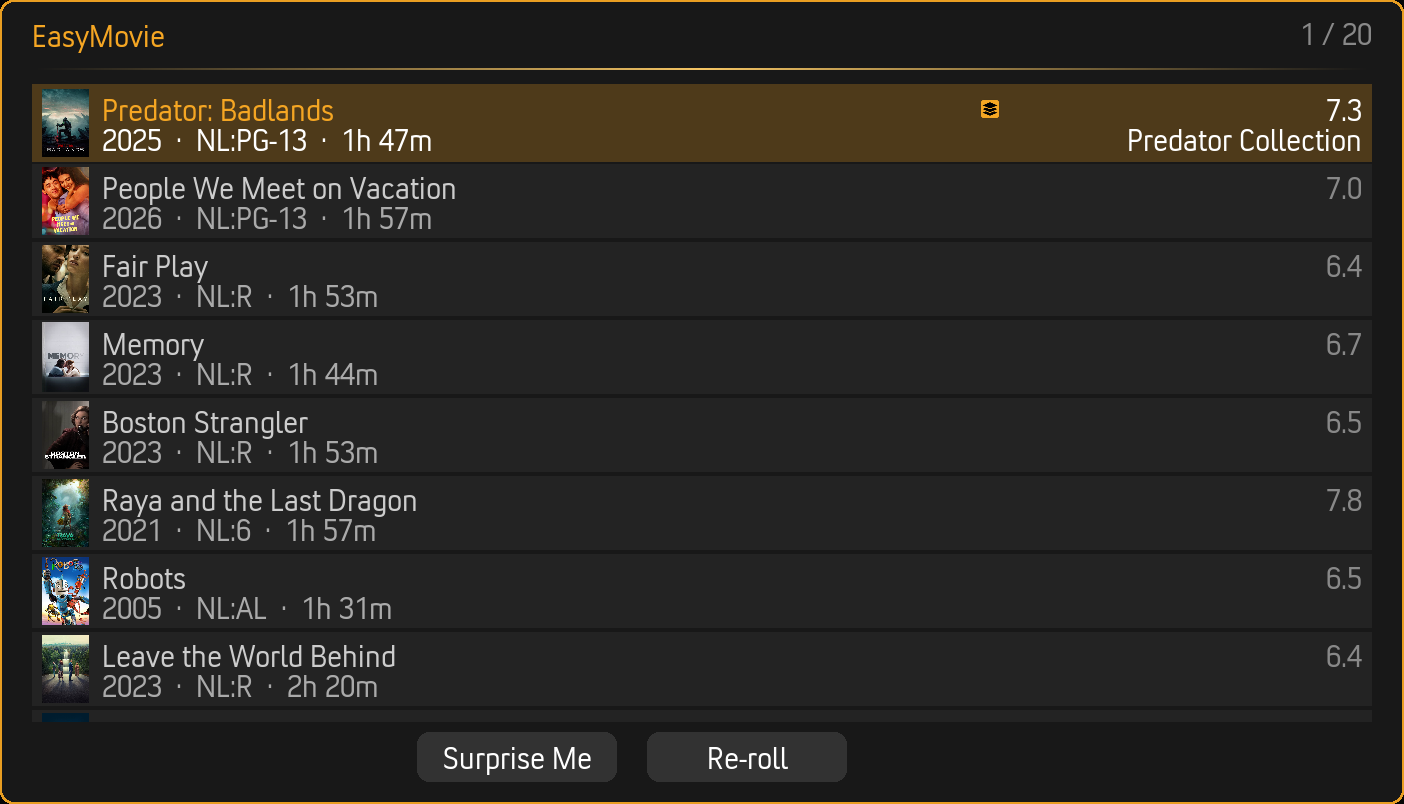
Card List
Compact rows with poster thumbnail, title, year, rating, runtime, and set information. Data-dense and easy to scan.
Best for: Quick navigation with detailed information at a glance.
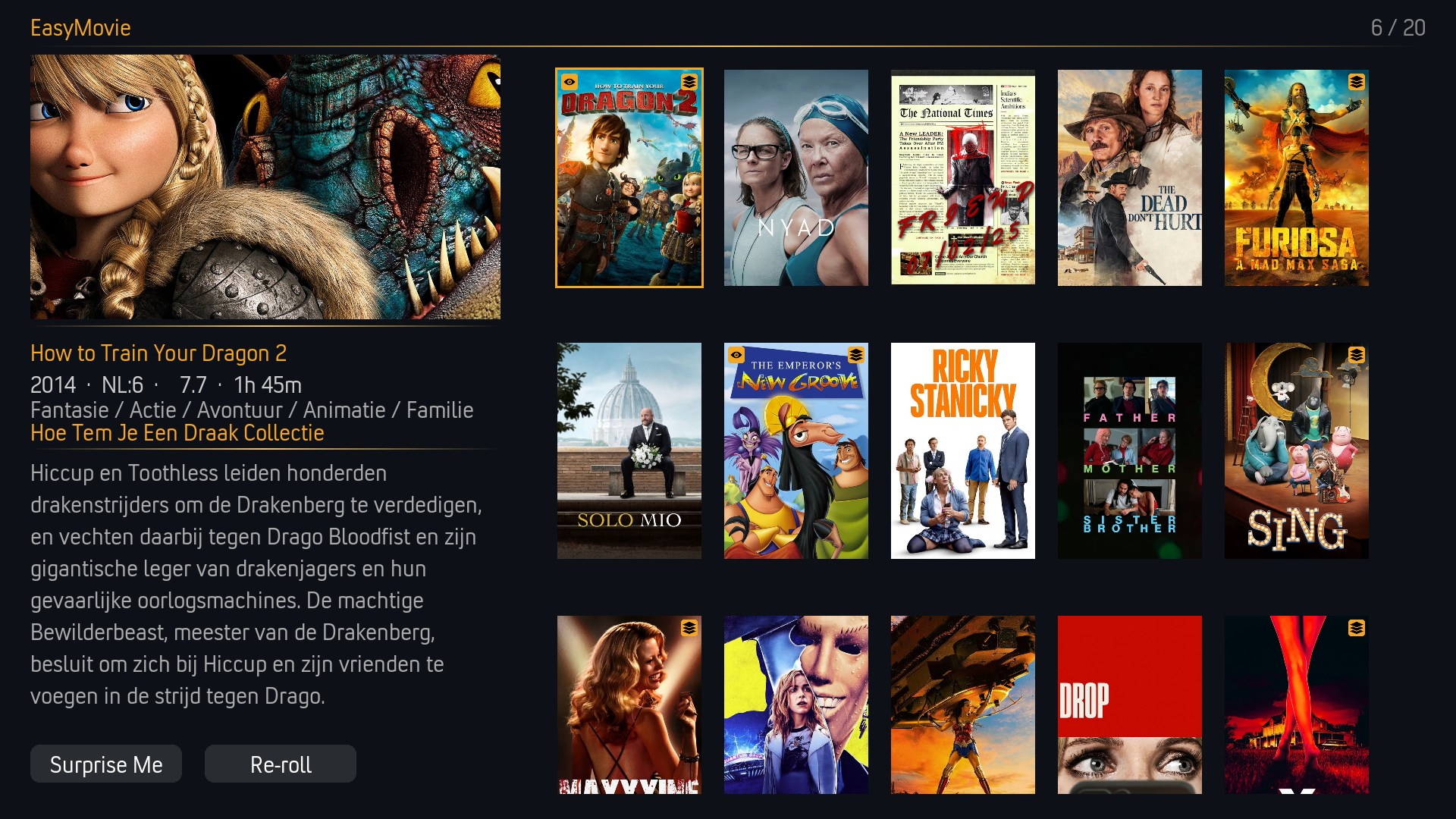
Posters
A visual grid showing movie poster artwork. The focused movie displays details and plot summary.
Best for: Visual browsing, recognizing movies by artwork.
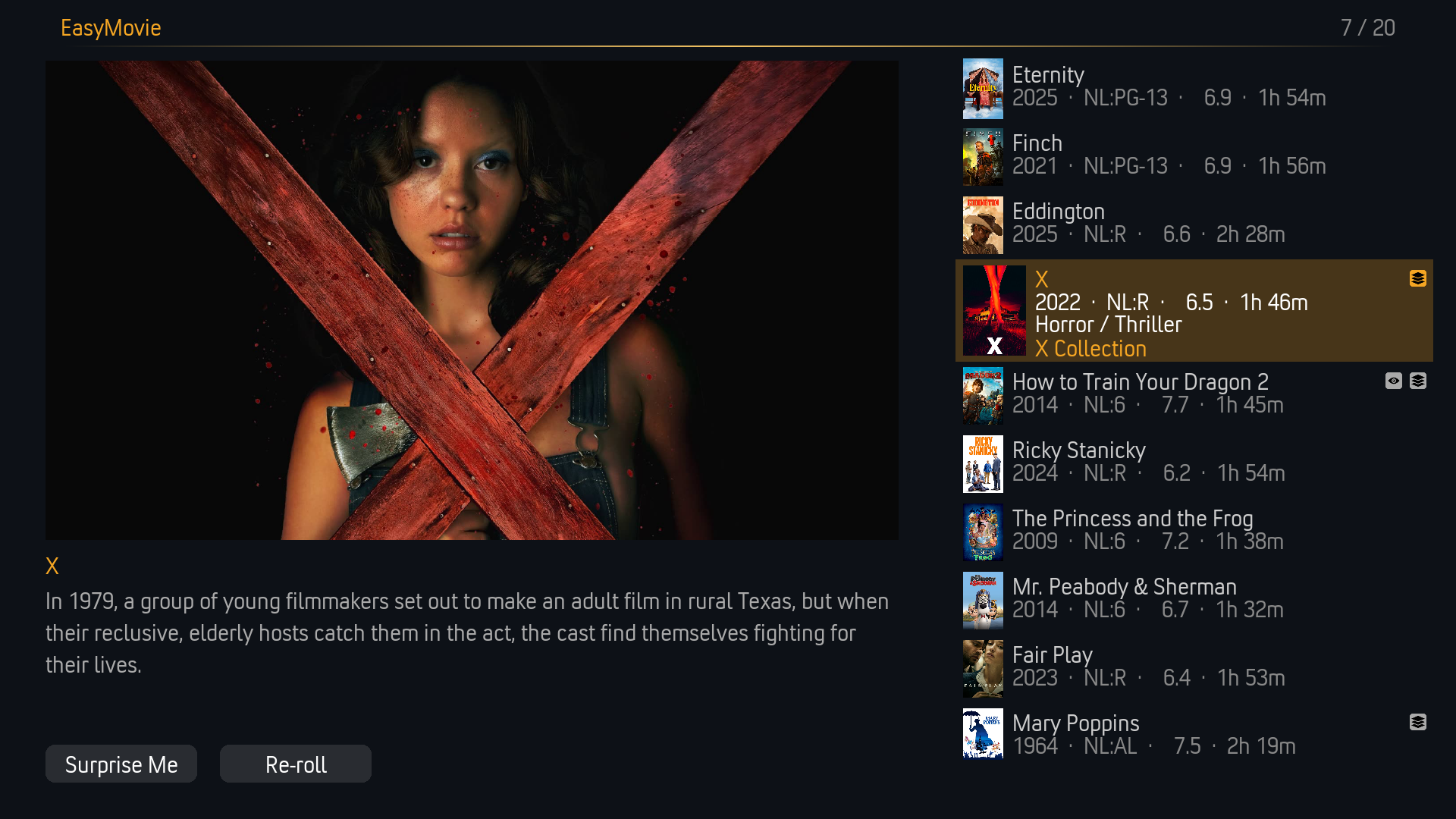
Big Screen
Large poster artwork on the left with movie details and a scrollable list on the right. Optimized for 10-foot viewing from a distance.
Best for: Living room viewing from a couch, remote control navigation.
Split View
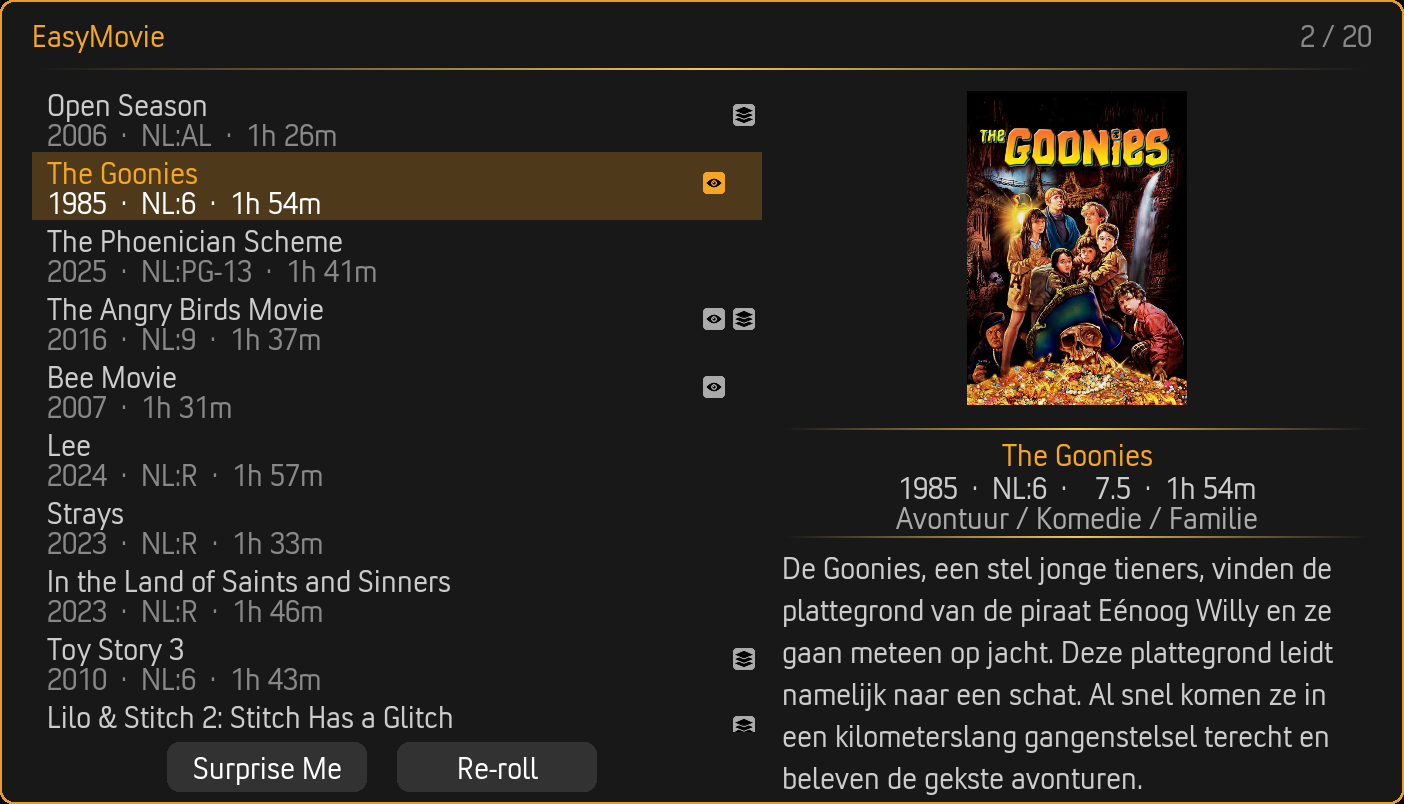
Two-column layout: a compact movie list on the left and a detail panel on the right showing the focused movie's poster, rating, runtime, plot summary, and set information.
Best for: Balanced browsing with details always visible.
Themes
All views and dialogs use your selected accent color theme. Change via Settings > EasyMovie > Appearance > Theme.
| Theme | Accent Color |
|---|---|
| Golden Hour (default) | Warm orange/golden |
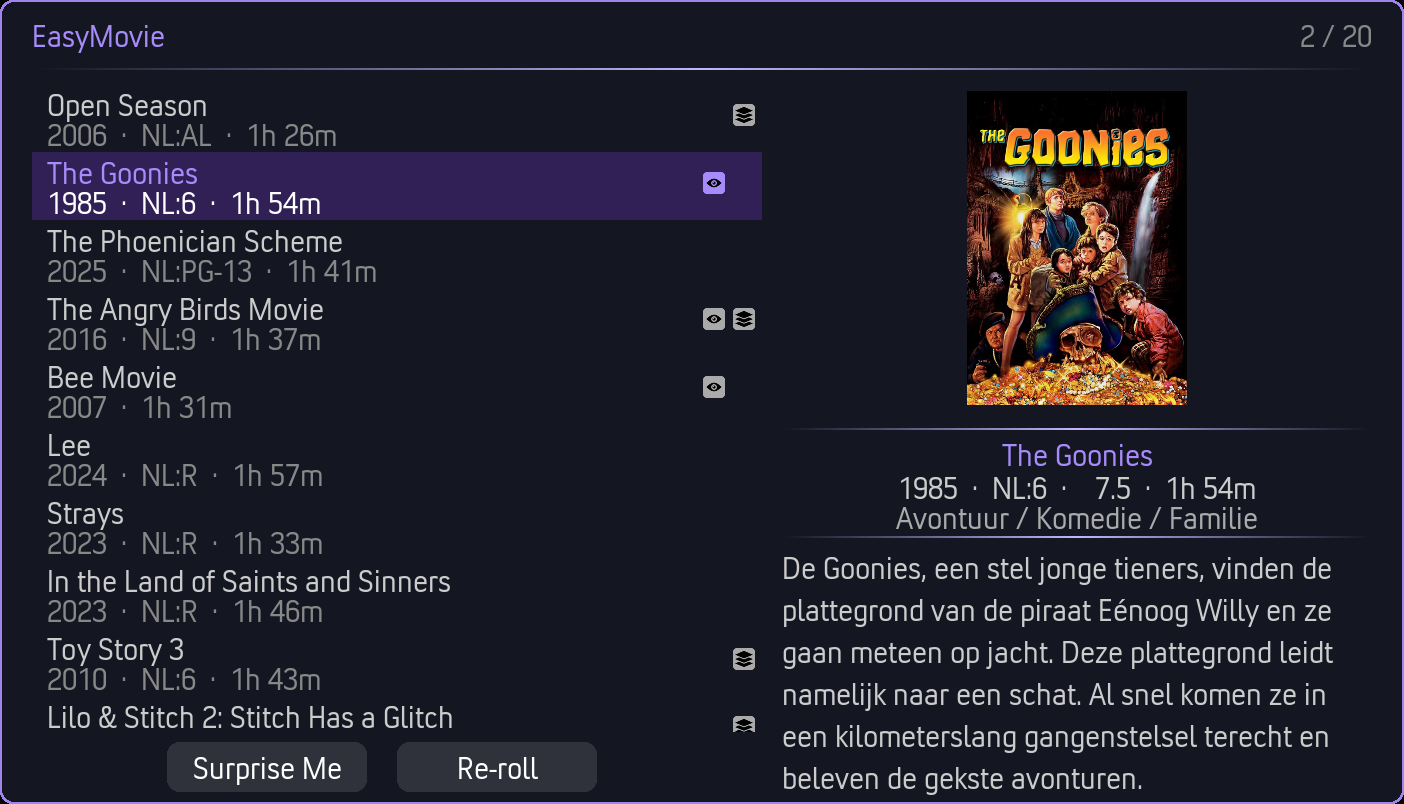
| Ultraviolet | Purple |
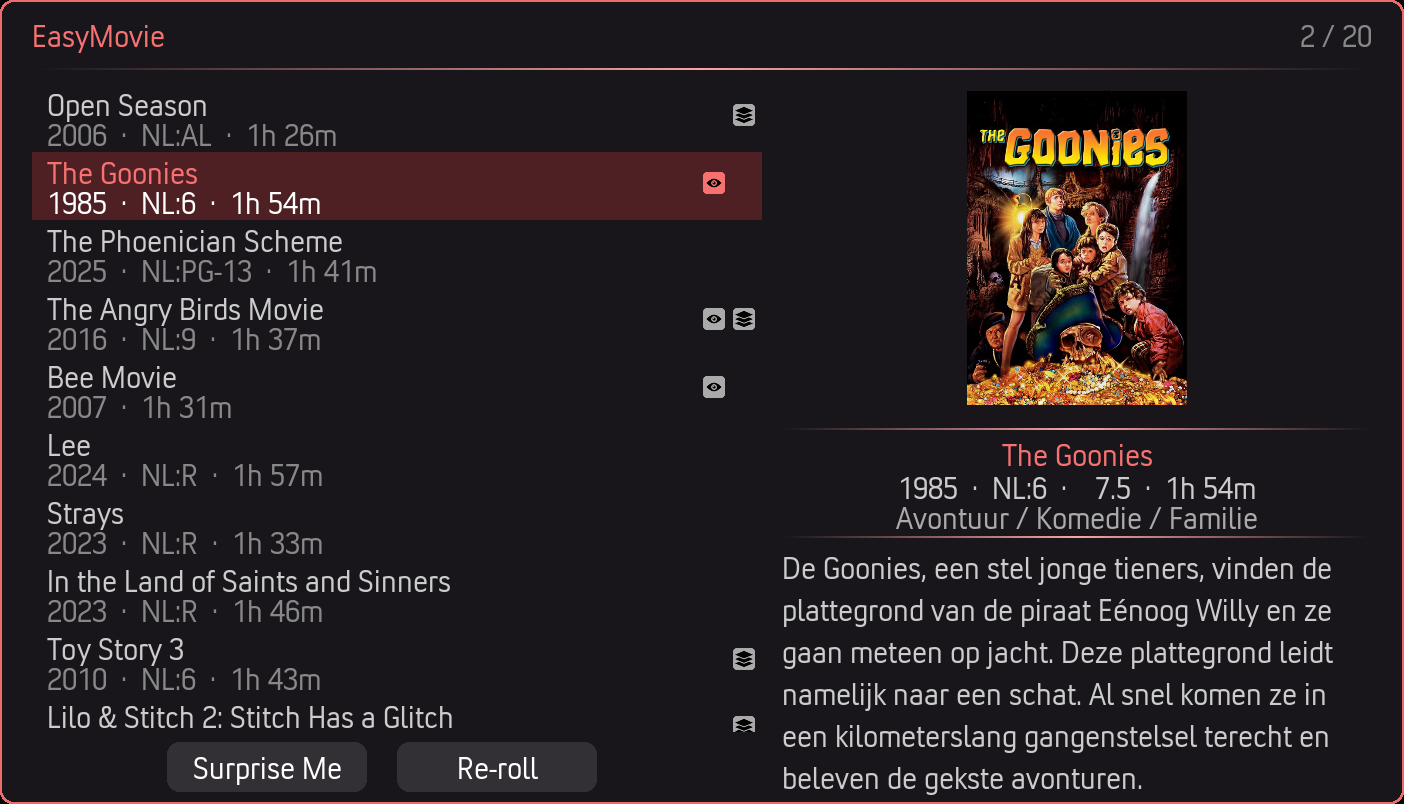
| Ember | Red |
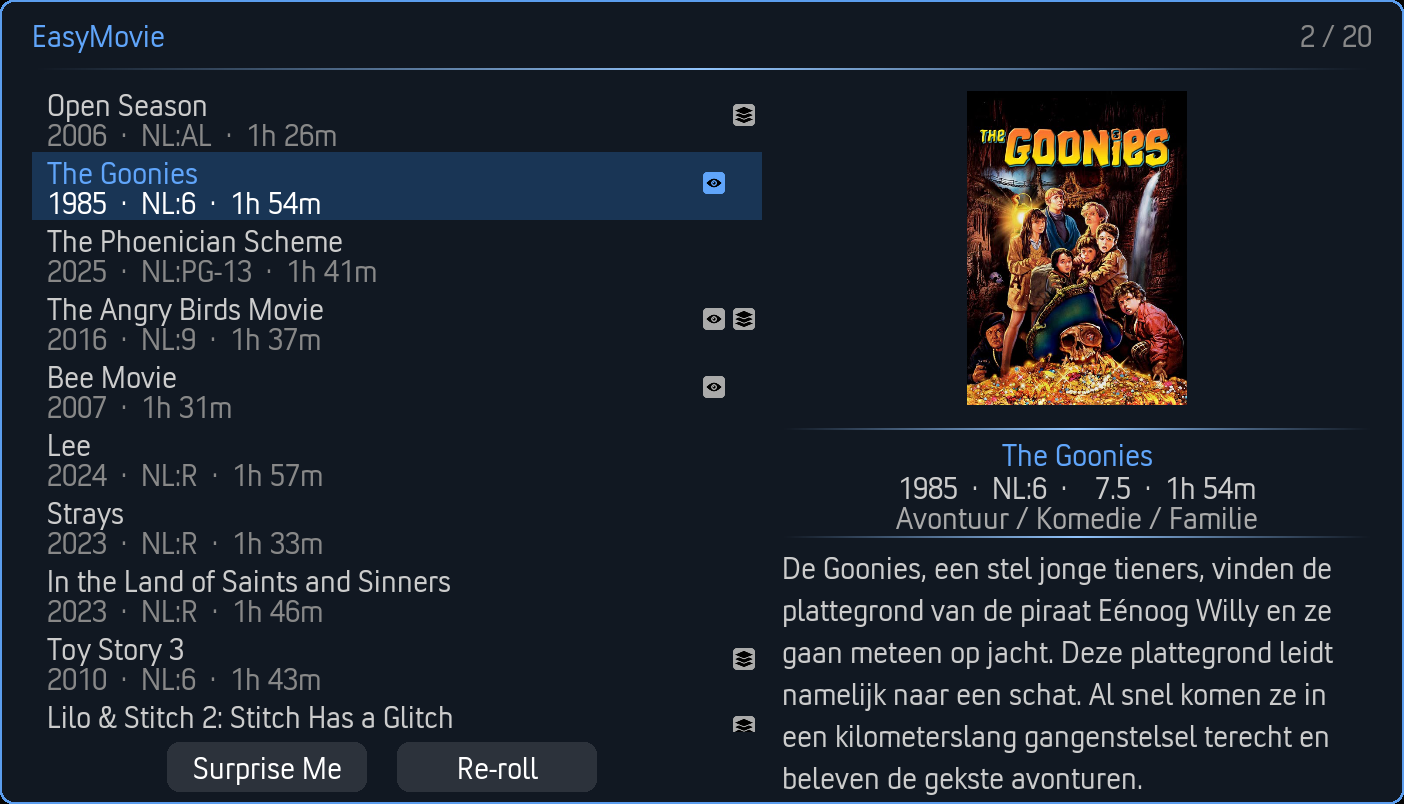
| Nightfall | Blue |
|
 |
 |
 |
Tip: Press the T key (or the blue button on your remote) in Browse Mode to preview theme colors without changing settings.
Actions
Play
Select a movie and press Enter to start playback. If the movie is part of a collection and set awareness is enabled, EasyMovie may suggest an earlier unwatched movie instead (see Movie Sets).
Movie Info
With a movie focused, press I (keyboard) or the Info button (remote) to open Kodi's standard movie information screen - the same details view used throughout Kodi. It shows the full library entry: plot, cast with photos, director, writer, studio, ratings, and artwork. Works in all five view styles.
From the info screen you can back out to return to your results with your place kept, or press Play to start the movie directly. Playing from there works the same as selecting a movie normally - EasyMovie records the playback so resume and in-progress tracking still work, and the results window closes.
No setting is required; the Info action is always available.
Surprise Me
Can't decide? Surprise Me picks a random movie from the current results and starts playing immediately.
Re-roll
Not feeling any of the suggestions? Re-roll generates a fresh set of random results from the same filter criteria. The re-suggestion system ensures you don't see the same movies again too quickly.
Play Full Set
When a movie belongs to a collection and set awareness is enabled, Play Full Set builds a playlist of all movies in the set and starts playing from the first unwatched one.
Back
Returns to the filter wizard so you can adjust your criteria.
Sorting Options
Control how results are ordered. Change via Settings > Browse Mode > Results > Sort by.
| Sort Method | Description |
|---|---|
| Random (default) | Shuffled order - different every time |
| Title | Alphabetical by movie title |
| Year | By release year |
| Rating | By user/community rating |
| Runtime | By movie length |
| Date Added | By when the movie was added to your library |
Sort Direction
Choose Ascending or Descending via Settings > Browse Mode > Results > Sort direction.
Result Count
Configure how many movies appear in the results. Change via Settings > Browse Mode > Results > Number of movies.
- Range: 1 to 50 movies
- Default: 10
More movies means more choice but takes longer to browse. Fewer movies makes for a quicker decision.
Return After Playback
By default, EasyMovie returns to the movie list after you finish watching. This lets you quickly pick your next movie.
To disable: Settings > Browse Mode > Appearance > Return to EasyMovie after playback > Off
When disabled, playback ends at your previous Kodi location (home screen, etc.).
Movie Set Information
When set awareness is enabled, movies that belong to collections show their set name and position (e.g., "Movie 2 of 3 in The Lord of the Rings Collection").
To show/hide: Settings > Movie Sets > Show set information
Related Pages
- Filter Wizard - The filtering step before browsing
- Playlist Mode - The other way to watch
- Movie Sets - How collections work in Browse Mode
- Settings Reference - All Browse Mode settings