Filter Wizard
The Filter Wizard is EasyMovie's signature feature. Instead of scrolling through your entire library, you answer a few quick questions and EasyMovie narrows down to movies that match your mood.
How It Works
- Launch EasyMovie - Choose Browse Mode or Playlist Mode
- Answer filter questions - Each step narrows down the pool
- See your results - A curated random selection from what matched
The wizard runs through up to seven filter steps. Each filter has three modes (configurable in Settings > Filters):
| Mode | Behavior |
|---|---|
| Ask | Show a dialog each time - you choose in the moment |
| Pre-set | Use your saved values silently - no dialog shown |
| Skip | Ignore this filter entirely - all movies pass through |
Filters set to "Skip" or "Pre-set" don't interrupt the flow, so you can make the wizard as quick or detailed as you like.
Filter Steps
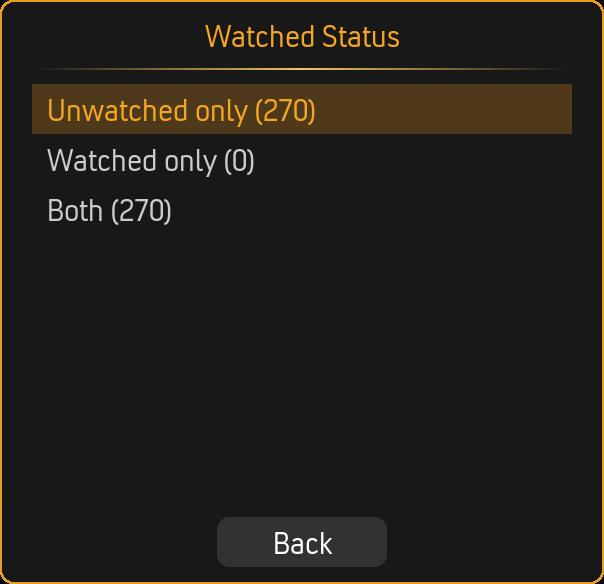
1. Watched Status
Choose whether to include unwatched movies, watched movies, or both.
| Option | Description |
|---|---|
| Unwatched | Only movies you haven't seen yet |
| Watched | Only movies you've already seen (rewatch night!) |
| Both | Everything in your library |
2. Ignore Genres
Select genres you want to exclude from results. Useful for permanently filtering out genres you never want (e.g., Horror for family movie night).
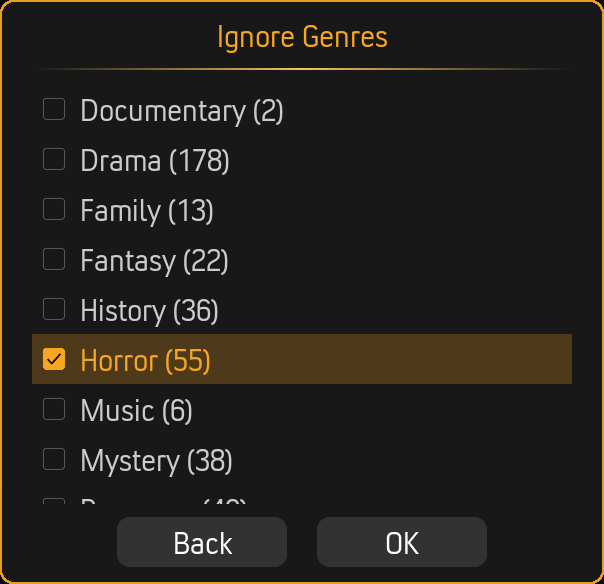
Matching modes: - Any selected (OR) - Exclude movies matching any ignored genre - All selected (AND) - Only exclude movies matching all ignored genres
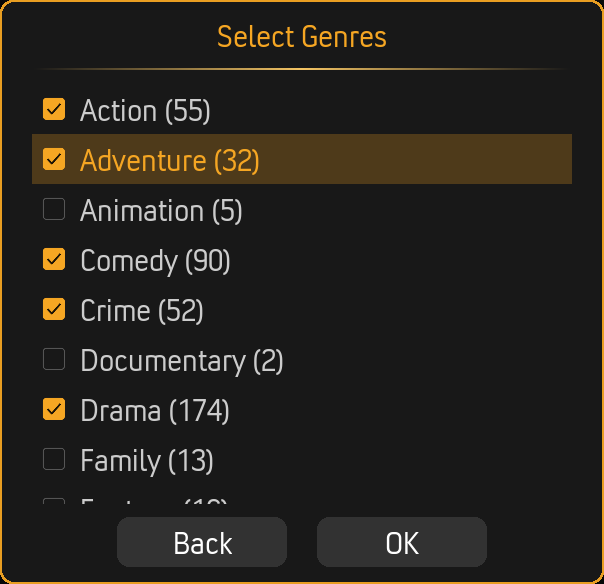
3. Select Genres
Select genres you want to include in results.
Matching modes: - Any selected (OR) - Include movies matching any selected genre (default) - All selected (AND) - Only include movies matching all selected genres
Example: Selecting "Action" and "Comedy" with OR matching returns action movies, comedies, and action-comedies. With AND matching, only action-comedies appear.
4. Age Ratings
Filter by MPAA/certification ratings. The dialog shows all ratings found in your library.
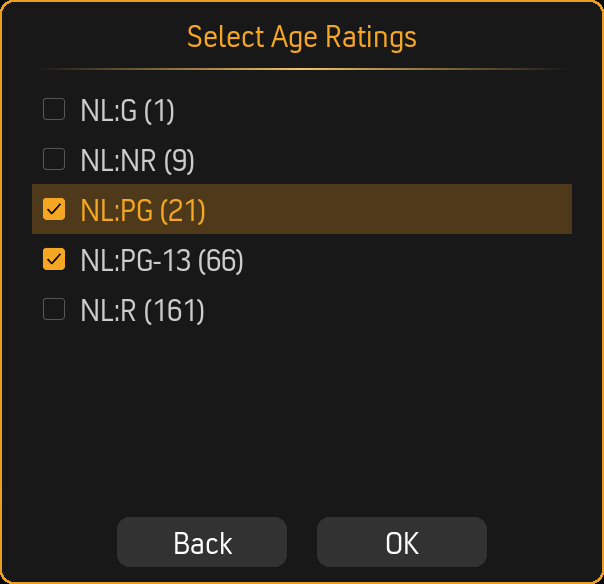
The available ratings come directly from your movie metadata - whatever ratings your library contains will appear here.
5. Runtime
Choose a runtime range. The wizard offers preset ranges for quick selection.
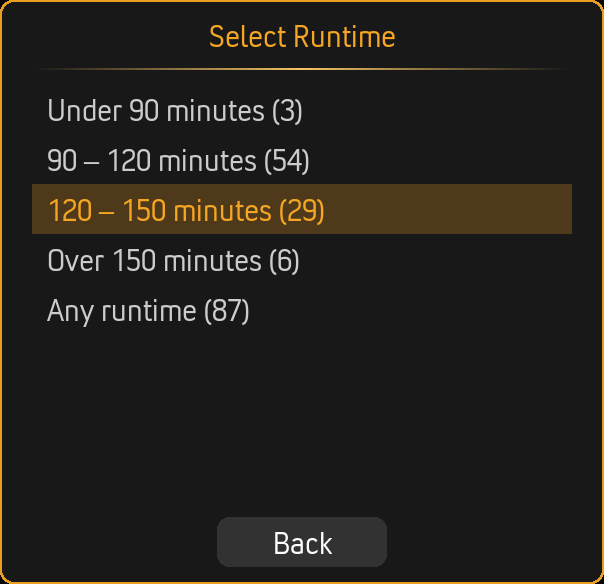
| Option | Range |
|---|---|
| Under 90 minutes | Short films and quick watches |
| 90 – 120 minutes | Standard movie length |
| 120 – 150 minutes | Longer features |
| Over 150 minutes | Epics and extended cuts |
| Any runtime | No filter |
In Pre-set mode, you can configure exact minimum and maximum values (0–300 minutes, in 5-minute steps).
6. Time Period
Filter by release year. The wizard offers recency options and decade browsing.
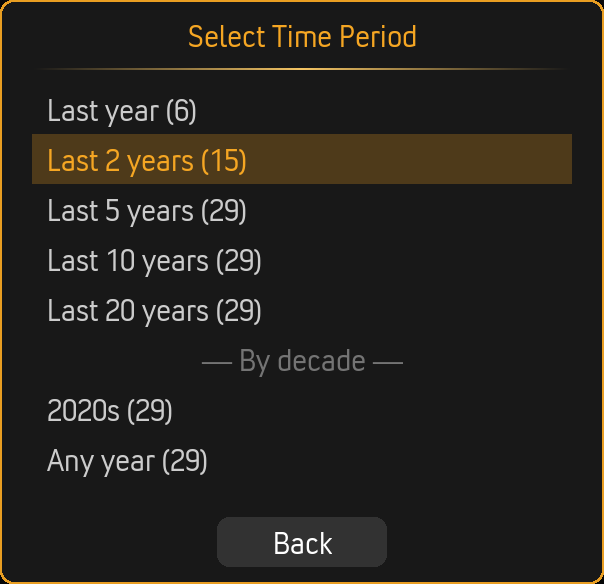
Recency options: - Last year - Last 2 years - Last 5 years - Last 10 years - Last 20 years
Decade browsing: Select movies from specific decades (2020s, 2010s, 2000s, etc.)
Any year: No year filter
In Pre-set mode, you can configure: After year, Before year, Between years, or Less than X years ago.
7. Score
Set a minimum rating threshold.
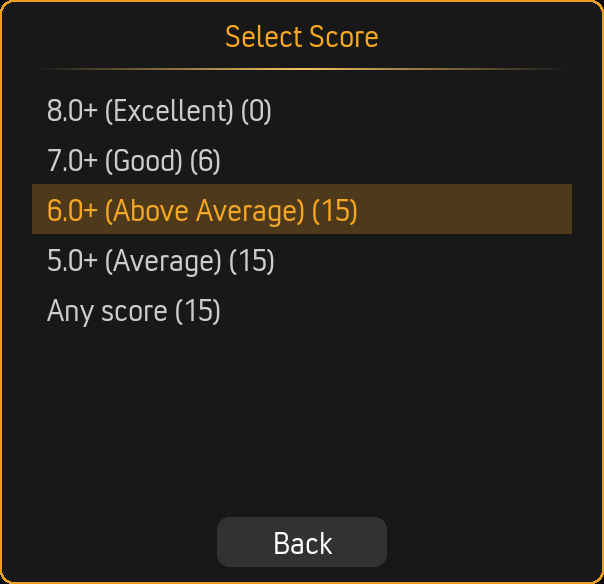
| Option | Threshold |
|---|---|
| 8.0+ (Excellent) | Only highly rated movies |
| 7.0+ (Good) | Well-reviewed movies |
| 6.0+ (Above Average) | Decent and above |
| 5.0+ (Average) | Most movies qualify |
| Any score | No filter |
Scores use a 0–100 scale internally (so 70 = 7.0 rating).
Movie Counts
The wizard can show how many movies match each option, helping you make informed choices.
Enable in: Settings > Advanced > Filters > Show movie counts in wizard
Cumulative Counts
When enabled, counts narrow as you progress through the wizard. After selecting "Action" in the genre step, the runtime step shows counts for action movies only - not your entire library.
Enable in: Settings > Advanced > Filters > Cumulative counts
Performance note: Cumulative counting requires additional queries at each step. On low-power hardware, you may want to disable this for a snappier wizard experience.
Remembering Answers
EasyMovie can pre-fill the wizard with your previous answers, so you can quickly repeat last night's choices or use them as a starting point.
Enable in: Settings > Advanced > Filters > Remember last wizard answers
Navigation
- Select an option - Click or press Enter to choose
- Back - Go back to the previous step
- Cancel - Exit the wizard entirely
Related Pages
- Browse Mode - What happens after the wizard in Browse Mode
- Playlist Mode - What happens after the wizard in Playlist Mode
- Settings Reference - All filter settings explained