Movie Sets
EasyMovie understands movie collections. When a movie belongs to a set (like The Lord of the Rings or Harry Potter), EasyMovie helps you watch them in order and continue through the collection.
Set Awareness
When enabled, EasyMovie changes how it handles movies that belong to collections:
- Instead of suggesting a random movie from a set, EasyMovie suggests the first unwatched one
- If you've seen The Fellowship of the Ring and The Two Towers, EasyMovie suggests The Return of the King
- If you haven't seen any, it starts with the first movie
Enable in: Settings > Movie Sets > Enable movie set awareness
What Counts as a Set?
EasyMovie uses Kodi's built-in movie set system. These are the "Collections" you see in your library - typically populated automatically by scrapers like TMDb or manually by you.
If a movie shows as part of a set in Kodi's library, EasyMovie will recognize it.
Set Information
When browsing results, set movies display their collection name and position - for example, "Movie 2 of 3 in The Lord of the Rings Collection".
Enable in: Settings > Movie Sets > Show set information
This appears in all view styles (Showcase, Card List, Posters, Big Screen, Split View).
Set Continuation
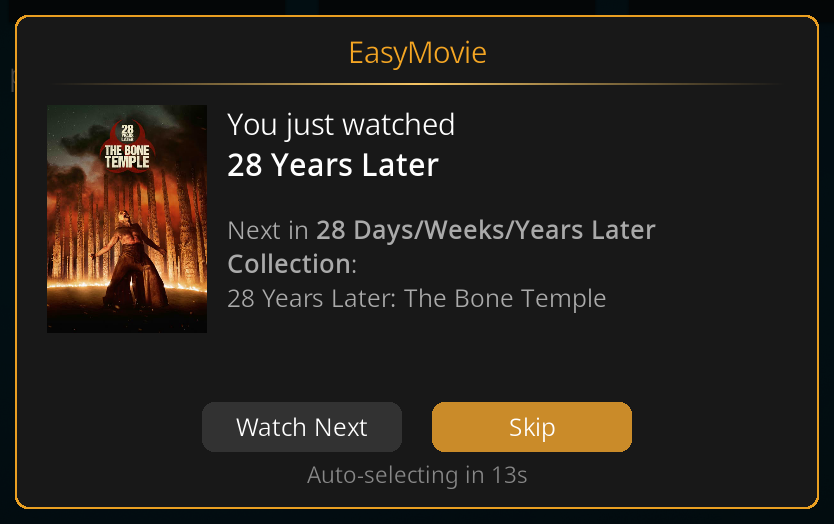
After finishing a collection movie, EasyMovie can prompt you to watch the next one in the set.
How It Works
- You finish watching a movie that belongs to a collection
- EasyMovie checks if there's a next unwatched movie in the set
- A prompt appears showing the next movie with a countdown timer
- Choose Watch Next to continue the set, or Skip to return
Countdown Timer
The countdown gives you time to decide without requiring immediate input.
| Setting | Options | Default |
|---|---|---|
| Countdown duration | 5–60 seconds (step 5) | 20 seconds |
| If countdown expires | Continue set / Continue playlist | Continue set |
Continue set: When the timer runs out, the next collection movie starts playing automatically.
Continue playlist: When the timer runs out, the existing playlist resumes instead (useful in Playlist Mode).
When Does Continuation Appear?
The prompt only appears when: - Set awareness is enabled - Continuation prompts are enabled - The movie you just finished belongs to a collection - There's at least one more unwatched movie in the collection
Enable in: Settings > Movie Sets > Enable continuation prompts
Earlier Movie Warnings
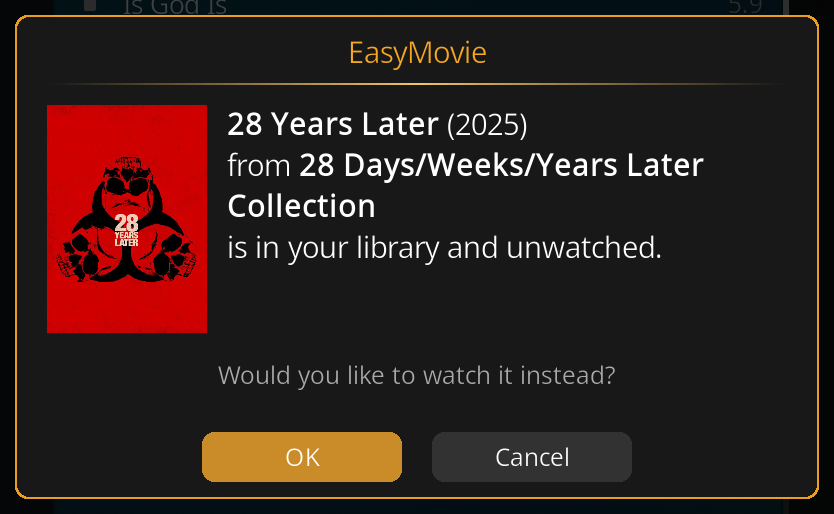
If you're about to watch a movie but there's an earlier unwatched movie in the same set, EasyMovie warns you.
Example
You select The Dark Knight Rises (movie 3 of 3 in The Dark Knight Trilogy), but The Dark Knight (movie 2) is unwatched. EasyMovie shows:
"The Dark Knight from The Dark Knight Trilogy is in your library and unwatched. Would you like to watch it instead?"
You can choose to watch the earlier movie or continue with your original selection.
Enable in: Settings > Playback > Warnings > Warn about earlier unwatched movies in set
Settings Summary
| Setting | Location | Options | Default |
|---|---|---|---|
| Enable movie set awareness | Movie Sets > Set Awareness | On / Off | On |
| Show set information | Movie Sets > Set Awareness | On / Off | On |
| Enable continuation prompts | Movie Sets > Continuation | On / Off | On |
| Countdown duration (seconds) | Movie Sets > Continuation | 5–60 | 20 |
| If countdown expires | Movie Sets > Continuation | Continue set / Continue playlist | Continue set |
| Warn about earlier unwatched movies | Playback > Warnings | On / Off | On |
Visibility Rules
- "Show set information" only appears when set awareness is enabled
- "Enable continuation prompts" only appears when set awareness is enabled
- "Countdown duration" and "If countdown expires" only appear when both set awareness and continuation prompts are enabled
Tips
- Not all movies need sets. Set awareness only affects movies that Kodi recognizes as part of a collection. Standalone movies are unaffected.
- Missing movies still work. If your library has movies 1 and 3 but not 2, EasyMovie suggests movie 3 after you watch movie 1 (it works with what's available).
- Sets work in both modes. Set awareness, continuation, and warnings work in both Browse Mode and Playlist Mode.
Related Pages
- Browse Mode - How sets appear in browse results
- Playlist Mode - Set continuation during playlists
- Settings Reference - All Movie Sets settings