Browse Mode
Browse Mode displays all your TV shows with their next episode ready to play. You're in control: scan the list, pick what you're in the mood for, and start watching.
How It Works
- EasyTV scans your library: The background service identifies the next episode for every show
- Opens the episode list: Shows appear sorted by your preference (default: last watched)
- Select a show: Click to immediately start playing that episode
- List updates: After watching, the list refreshes with your new next episode
Surprise Me
The list answers "what are my options". Surprise Me answers "just pick one for me": it chooses a show at random and immediately starts playing its next episode.
The button sits at the bottom of every view style. Starting from the list, one arrow key press moves the focus to it:
| View style | Key to reach the button |
|---|---|
| Card List | Left or Right |
| Split View | Left or Right |
| Posters | Left (from the left-hand poster column) |
| Big Screen | Left |
| Showcase | Down |
Up and down keep scrolling the list as usual. From the button, any arrow key returns you to the list.
Press Enter and playback begins. There is no confirmation step and no preview of the pick.
What it chooses from:
- Every show in the list, including the ones you would have to scroll down to reach
- Only shows that have an episode ready to play
- With Limit shows displayed enabled, the list stops at your configured number, so that shorter list is the pool
Every eligible show has the same chance, including the one currently highlighted. Multi-select is ignored: Surprise Me always plays exactly one show, whatever is ticked.
Don't like what you got? Stop playback as usual. If Return to EasyTV after playback is enabled you land back on the list and can press the button again.
View Styles
EasyTV offers five visual layouts. Change via Settings → Browse Mode → Appearance → View style.
Card List (Default)
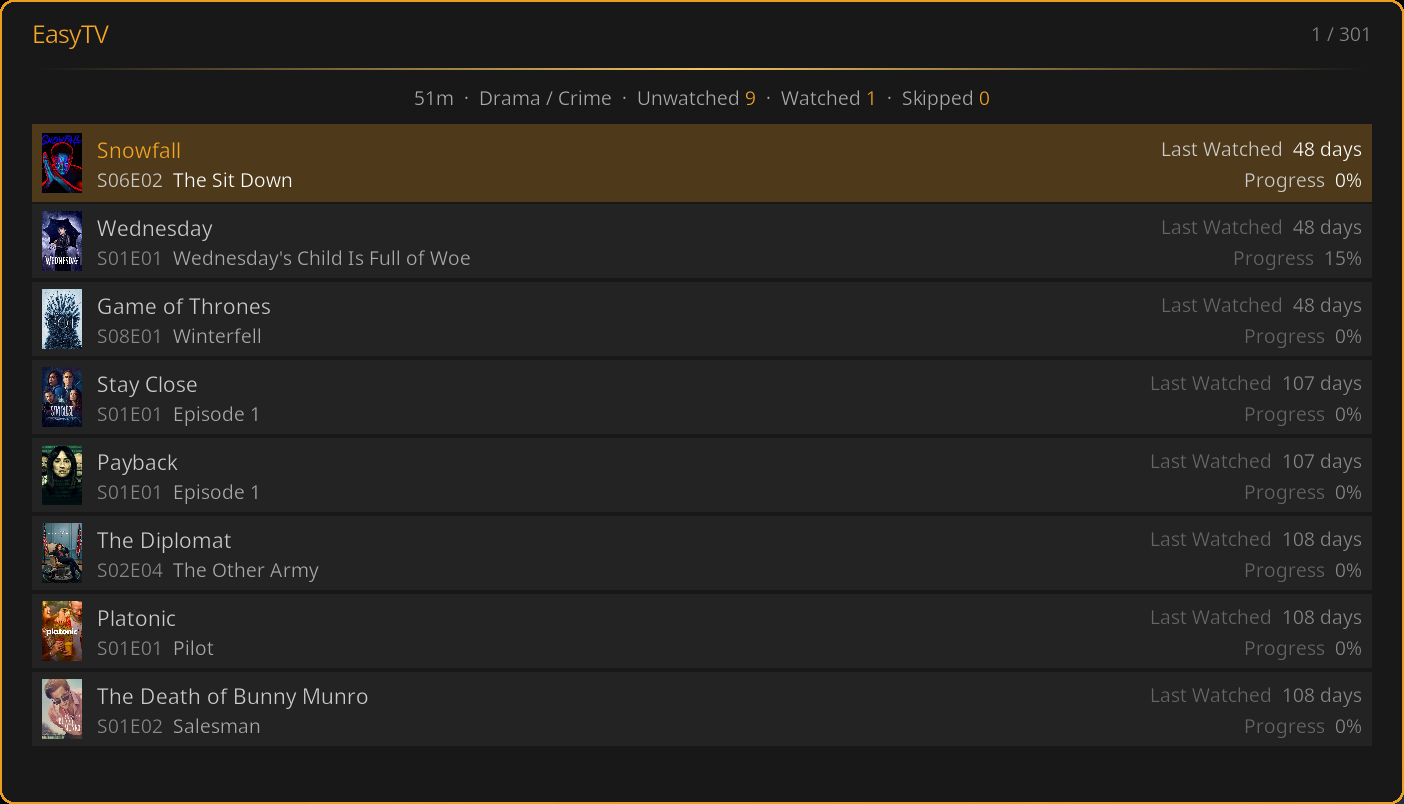
The default view with data-dense rows. Each row shows the show's poster, name, episode title, season/episode number, last watched date, and progress percentage.
Best for: Quick navigation with detailed information at a glance.
Posters
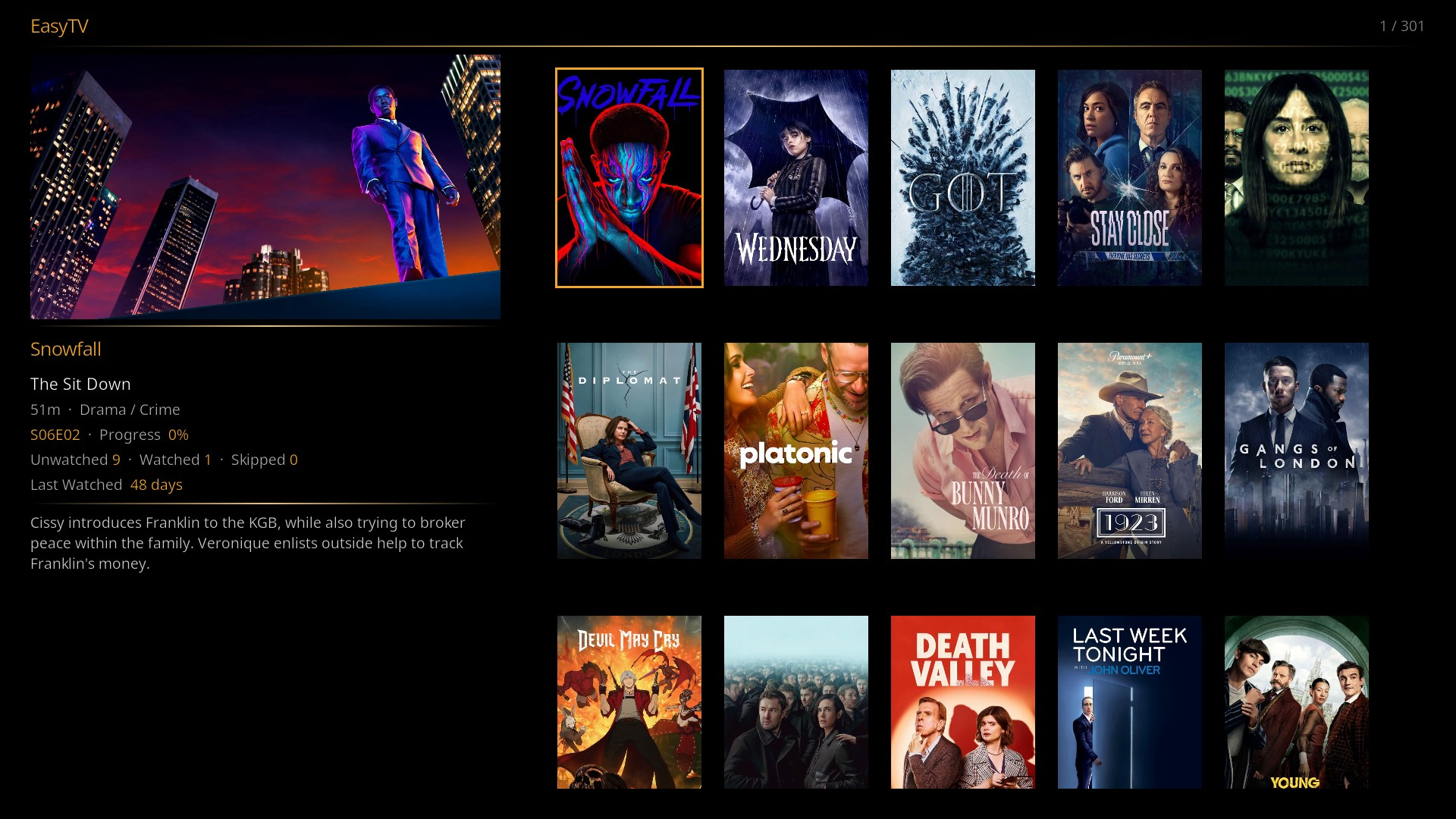
A visual grid showing show poster artwork. The focused show displays episode details and plot summary in the bottom-left corner.
Best for: Visual browsing, recognizing shows by artwork.
Big Screen
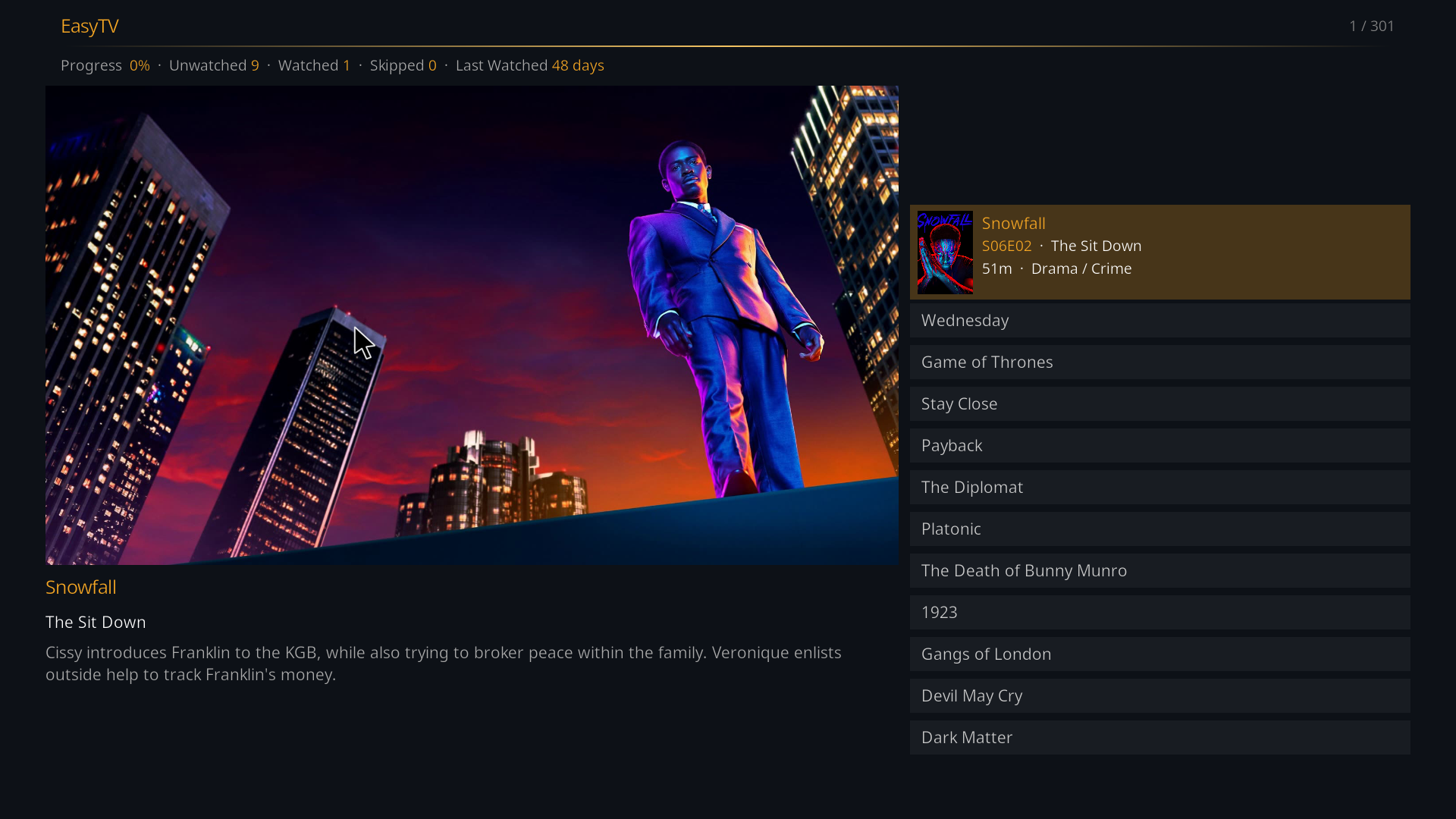
Large poster artwork on the left with episode details and a scrollable show list on the right. Optimized for 10-foot viewing from a distance.
Best for: Living room viewing from a couch, remote control navigation.
Split View
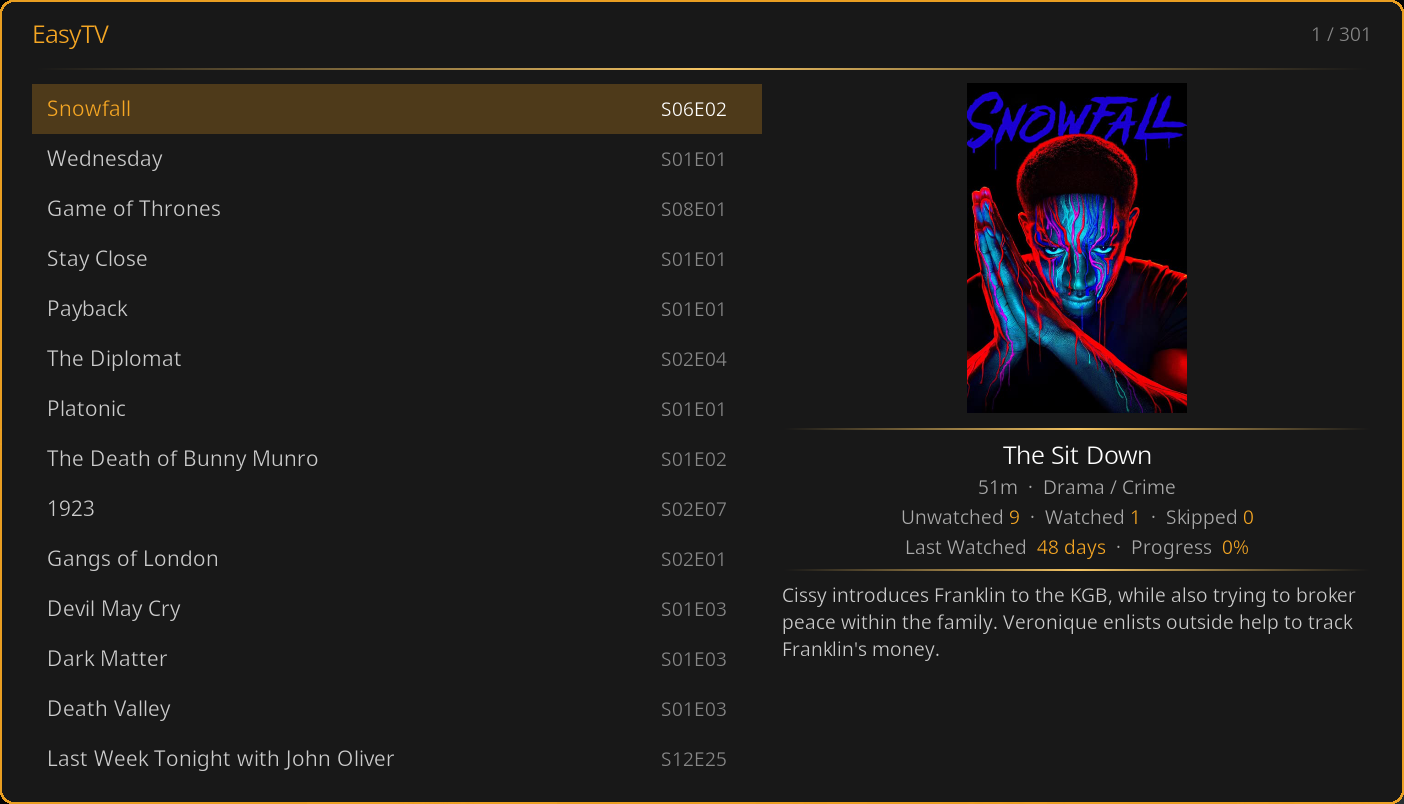
Two-column layout: a compact show list on the left and a detail panel on the right showing the focused show's poster, season/episode info, stats (progress, unwatched, watched, skipped), and plot summary.
Best for: Balanced browsing with details always visible.
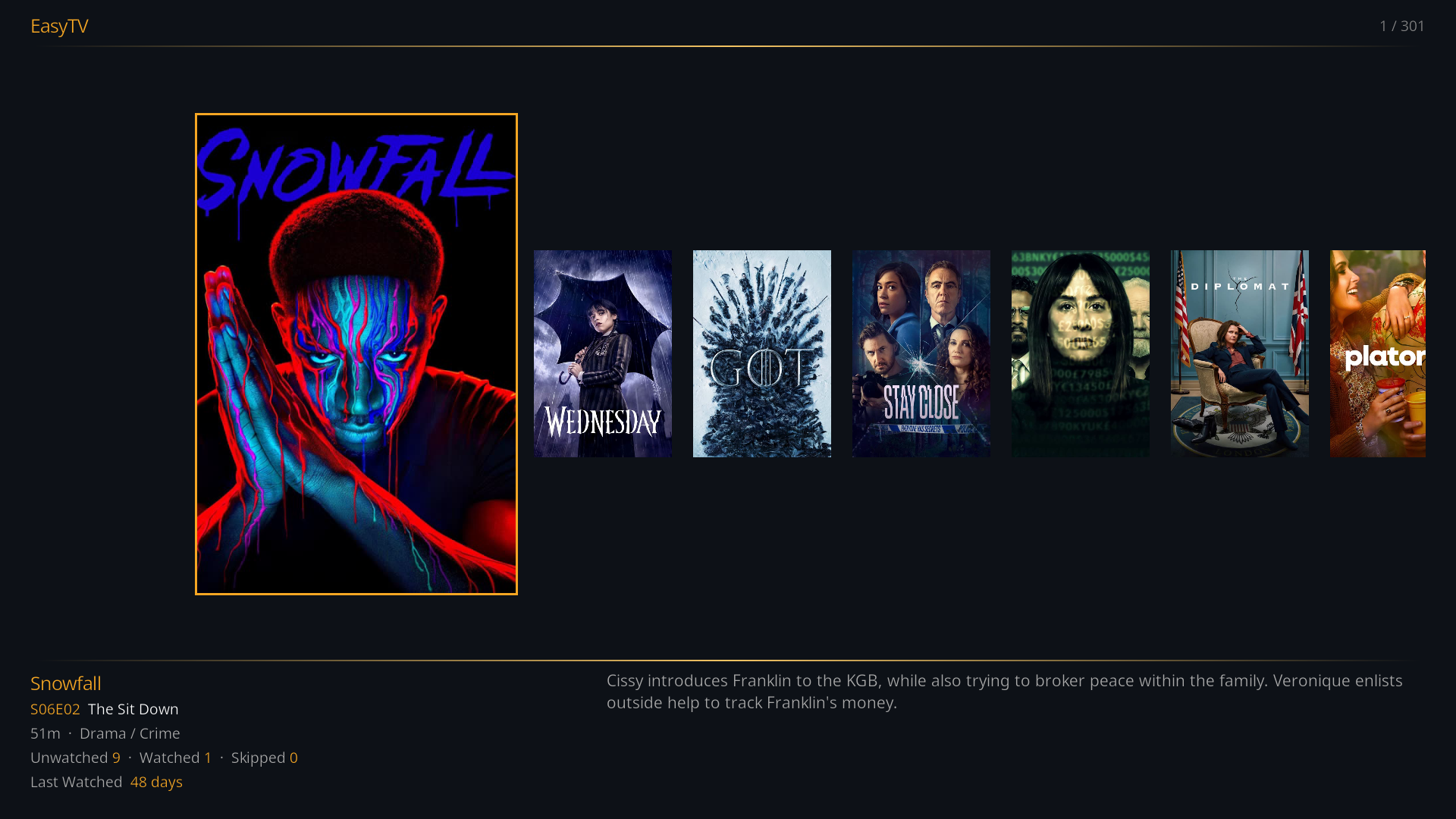
Showcase
A horizontal poster filmstrip with a fixed focus position. The focused poster zooms in (420 x 630) with a smooth animation, and an info panel below shows the show title, next episode, metadata, stats, and plot.
Best for: Cinematic, gallery-style browsing where the focused poster is the centerpiece.
Themes
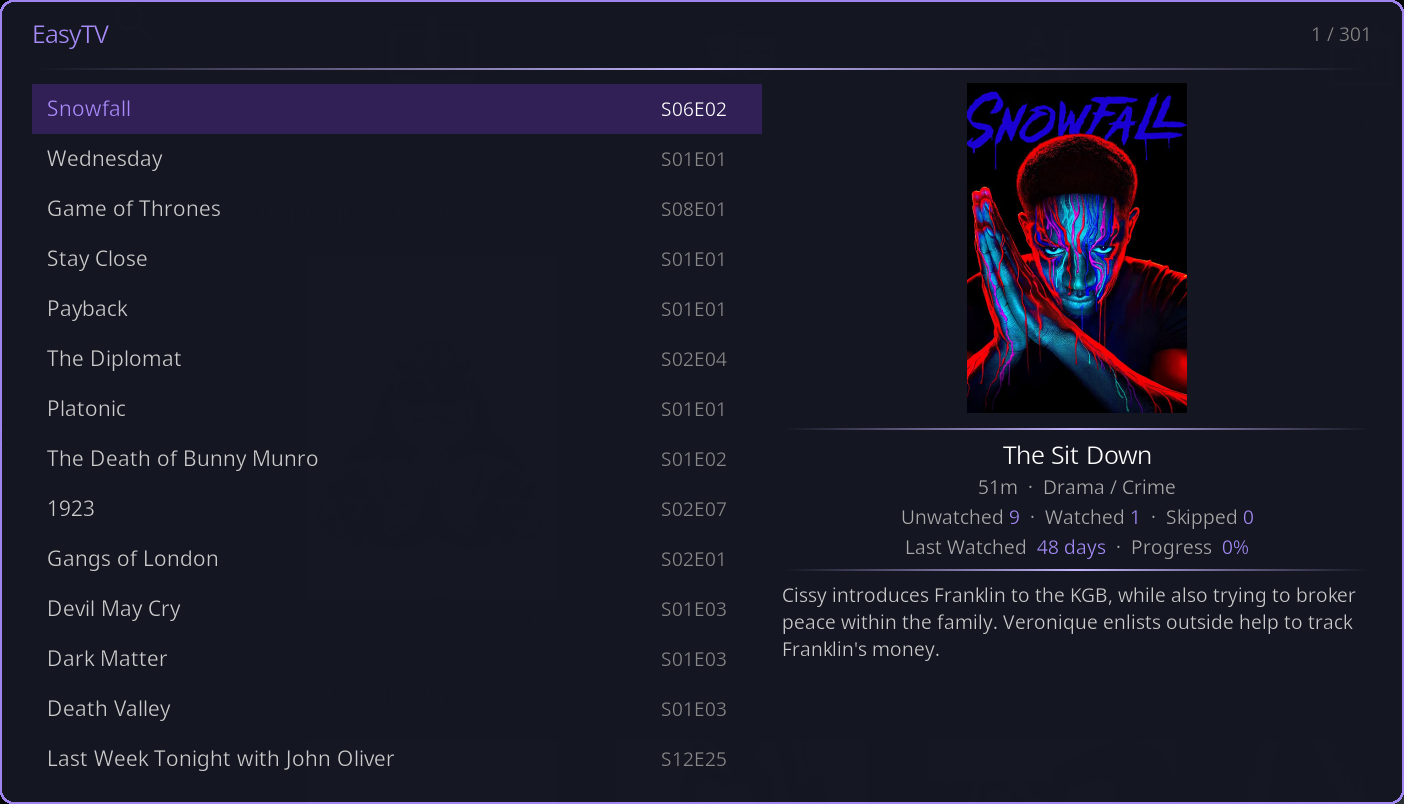
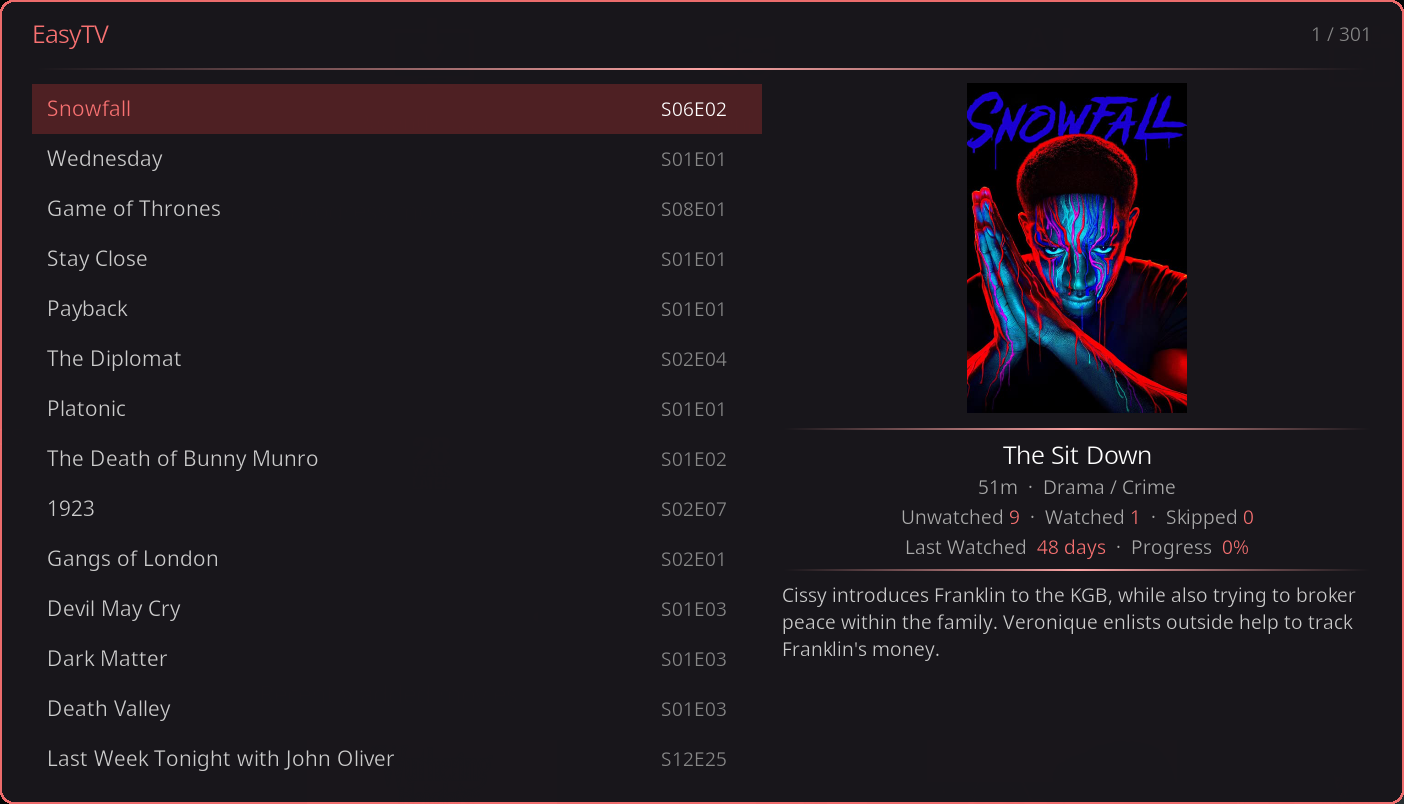
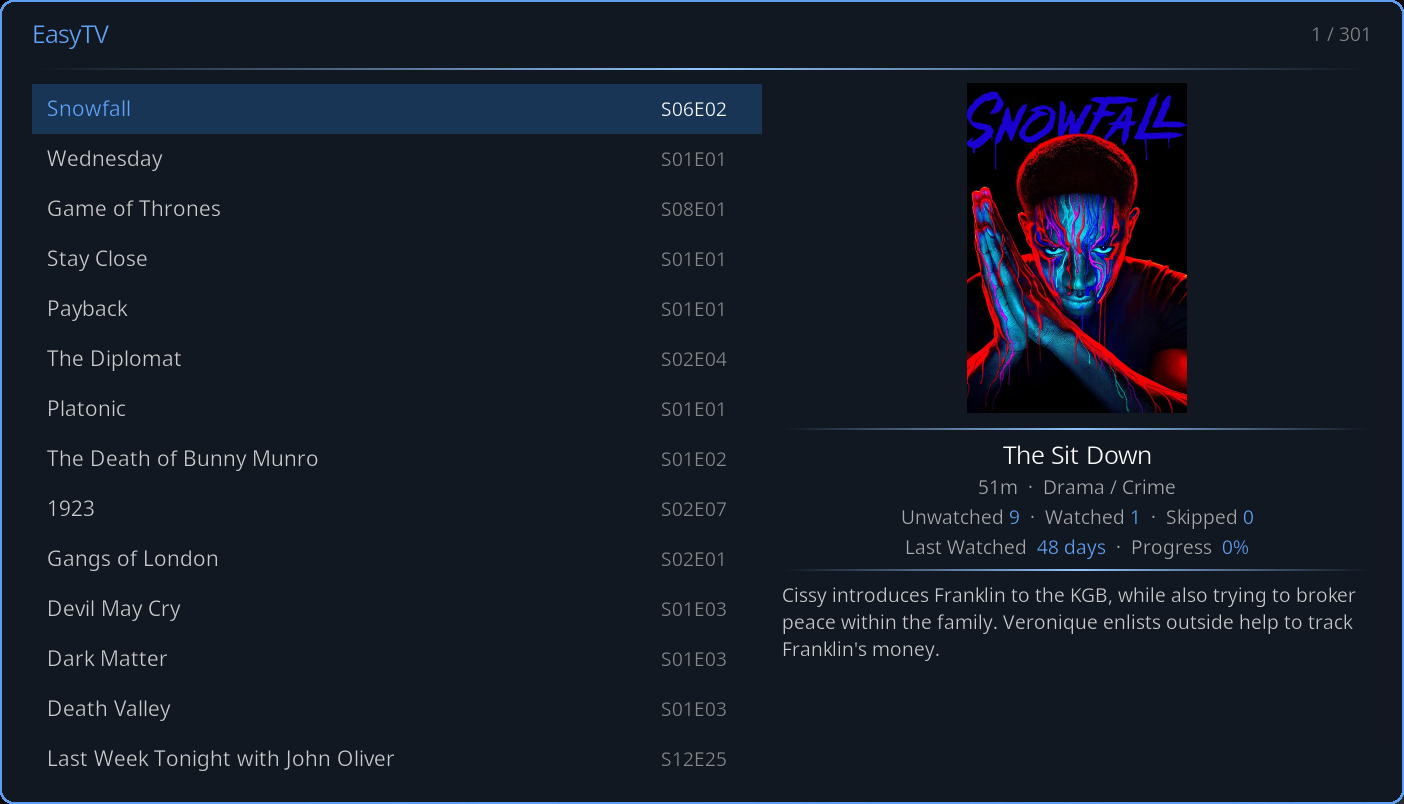
All views and dialogs use your selected accent color theme. Change via Settings → EasyTV → Appearance → Theme.
| Theme | Accent Color |
|---|---|
| Golden Hour (default) | Warm orange/golden |
| Ultraviolet | Purple |
| Ember | Red |
| Nightfall | Blue |
|
 |
 |
 |
Sorting Options
Control how shows are ordered. Change via Settings → Browse Mode → Sorting.
| Sort Method | Description | Use Case |
|---|---|---|
| Show Name | Alphabetical order | Finding a specific show |
| Last Watched (default) | Most recently watched shows first | Continue what you were watching |
| # Unwatched Episodes | Shows with most unwatched episodes first | Binge-worthy shows |
| # Watched Episodes | Shows you've watched most first | Your favorites |
| Season | Grouped by which season you're on | See progress across shows |
| Random | Shuffled order | Surprise yourself with what shows up first |
| Avg Episode Duration | Shows ordered by typical episode length | Pick something that fits your time slot |
Reverse Sort Order
Enable Reverse sort order to flip the direction: - Last Watched: Oldest first instead of newest - Show Name: Z-A instead of A-Z - Episode counts: Fewest first instead of most - Avg Episode Duration: Shortest first instead of longest
(Random has no meaningful reverse.)
Article Handling
EasyTV intelligently handles leading articles when sorting by name: - "The Office" sorts under "O" (not "T") - "A Series of Unfortunate Events" sorts under "S" - Supports articles in multiple languages (English, Spanish, German, French, etc.)
Context Menu
Press C on keyboard or the menu button on your remote to open the context menu.
Available Actions
| Action | Description |
|---|---|
| Multi-Select (on/off) | Toggle selection mode for batch operations |
| Play Episode / Play Selection | Plays the focused episode (single mode) or every selected episode (multi-select mode) |
| Play From Here | Play current episode and all below it |
| Export Episode / Export Selection | Copies the focused episode (single mode) or every selected episode (multi-select mode) to a folder |
| Mark as Watched | Mark selected episodes as watched |
| Update Library | Trigger a Kodi library scan |
| Refresh List | Reload the episode list from the service |
The Play and Export labels switch between "Episode" and "Selection" automatically depending on whether multi-select is on.
Multi-Select Mode
Multi-select lets you work with multiple episodes at once.
Enabling Multi-Select
- Open the context menu (
Cor menu button) - Select Multi-Select (on)
- The mode indicator changes
Using Multi-Select
- Click an episode: Toggles its selection (highlighted)
- Click again: Deselects it
- Navigate: Move through the list without changing selection
Actions in Multi-Select
With episodes selected:
| Action | Result |
|---|---|
| Play Selection | Plays all selected episodes as a playlist |
| Export Selection | Copies all selected episode files |
| Mark as Watched | Marks all selected as watched |
Exiting Multi-Select
- Open context menu
- Select Multi-Select (off)
- All selections are cleared
Play From Here
A quick way to play everything from your current position to the end of the list.
How it works: 1. Navigate to a show in the list 2. Open context menu → Play From Here 3. EasyTV creates a playlist starting with that episode 4. All episodes below it in the list are added
Use case: You've sorted by "Last Watched" and want to catch up on several shows in order.
Return After Playback
By default, EasyTV returns to the episode list after you finish watching. This lets you quickly pick your next show.
To disable: Settings → Browse Mode → Appearance → Return to EasyTV after playback → Off
When disabled, playback ends at your previous Kodi location (home screen, etc.).
Filtering Shows
Control which shows appear in Browse Mode.
Using the Show Filter
- Go to Settings → Shows → Show Filter
- Enable Use only selected shows
- Choose your Selection method:
| Method | Description |
|---|---|
| Pick shows manually | Opens a dialog to select specific shows |
| Use a smart playlist | Filters based on a Kodi smart playlist |
Manual Selection
- Select Pick shows manually
- Click Select shows...
- Check/uncheck shows to include
- Click Save
Smart Playlist Selection
- Select Use a smart playlist
- Choose Ask each time or Use default
- If using default, click Choose playlist file... to select a
.xspfile
See Smart Playlist Integration for creating filter playlists.
Episode Options
Settings → Shows → Show Filter → Series premieres / Season premieres
Control which premiere episodes appear in the browse list. Each setting has three modes:
| Mode | Series premieres (S01E01) | Season premieres (SxxE01) |
|---|---|---|
| Skip | Hides unstarted shows | Hides new-season episodes |
| Mix in | Shows appear alongside regular episodes (default) | Season premieres appear alongside regular episodes (default) |
| Only | Restricts list to premieres only | Restricts list to premieres only |
When either setting is Only, the entire browse list shows only premiere episodes. The other setting then controls which premiere types appear:
| Series premieres | Season premieres | What you see |
|---|---|---|
| Only | Mix in | All premieres (S01E01 + season premieres) |
| Only | Skip | S01E01 only, to discover completely new shows |
| Mix in | Only | All premieres (S01E01 + season premieres) |
| Skip | Only | Season premieres only, to find new seasons of shows you've started |
Example: You finished Season 1 of Breaking Bad. With season premieres set to Mix in, S02E01 appears in your list. Set to Skip, Breaking Bad disappears until you manually watch S02E01. Set to Only, your list shows only premiere episodes, which is a quick way to see what's new.
Episode Duration Filter
Filter shows by typical episode length.
- Go to Settings → Shows → Episode Duration
- Enable Enable duration filter
- Set Minimum episode length (0 = no minimum)
- Set Maximum episode length (0 = no maximum)
Examples: - Quick viewing session: Max 30 minutes - Feature-length episodes: Min 40 minutes - Standard sitcoms: Min 20, Max 30 minutes
Note: Duration is calculated as the median across all episodes in a show. Shows without duration metadata are excluded when the filter is active.
Hiding Random-Order Shows
If you've configured Random-Order Shows, you can hide them from Browse Mode.
Settings → Browse Mode → Appearance → Hide random-order shows
When enabled: - Random-order shows don't appear in the episode list - They still appear in random playlists - Useful if you only want to watch these shows via shuffle
Performance Options
For large libraries or low-power devices:
Limit Shows Displayed
- Go to Settings → Browse Mode → Performance
- Enable Limit shows displayed
- Set Maximum shows (1-30)
This caps how many shows load in the list, improving responsiveness.
Other Tips
- Use Card List view style (lighter than Posters)
- Sort by Last Watched (faster than episode count sorts)
- Keep your library well-maintained (remove duplicates, fix metadata)
Keyboard Shortcuts
| Key | Action |
|---|---|
| Enter | Play selected episode |
| C | Open context menu |
| Backspace / Esc | Close EasyTV |
| Arrow keys | Navigate the list, and move to the Surprise Me button |
Related Pages
- Random Playlist Mode: The other way to watch
- Settings Reference: All Browse Mode settings
- Smart Playlist Integration: Advanced filtering
- Random-Order Shows: Shuffle-friendly configuration