Installation
Requirements
| Requirement | Details |
|---|---|
| Kodi Version | Kodi 21 (Omega) or Kodi 22 (Piers) or later |
| Library | A TV library with watched/unwatched episode tracking |
| Optional | Movies library (for mixed playlists) |
| Optional | Shared MySQL/MariaDB database + script.module.pymysql (for multi-instance sync) |
⚠️ Not compatible with Kodi 20 (Nexus) or earlier versions. EasyTV targets the Python 3.11 runtime that Kodi 21 ships and Kodi 21+ APIs.
Installation Methods
There are two ways to install EasyTV. Pick the one that fits how you like to receive updates.
| Method | Auto-updates? | Latest stable? | Setup |
|---|---|---|---|
| Rouzax Repository | Yes (via Kodi) | Yes, immediately | One-time repo install |
| GitHub release zip | No (manual) | Yes, plus pre-releases | Per-release zip install |
From the Rouzax Repository (recommended)
The Rouzax repository auto-updates EasyTV (and the other Rouzax addons) every time a new stable release ships. One-time setup, then Kodi handles updates for you.
- Download the latest
repository.rouzax-X.Y.Z.zipfrom Rouzax Repository releases - In Kodi, go to Settings → Add-ons → Install from zip file
- Select the downloaded zip. (Kodi may prompt you to enable "Unknown sources" first; see the GitHub method below for the toggle path.)
- After the repository installs, go to Settings → Add-ons → Install from repository → Rouzax Repository → Program add-ons
- Select EasyTV and click Install
Future EasyTV updates arrive automatically through Kodi's add-on update cycle.
From GitHub (for the latest version, including pre-releases)
Use this if you want a release that hasn't reached the Kodi repository yet, or you want to test a pre-release build.
- Download the latest release
- Go to Releases
- Download the
.zipfile (e.g.,script.easytv-1.5.2.zip) -
Do not extract the zip. Kodi needs the zip file directly.
-
Install in Kodi
- Open Kodi
- Go to Settings → Add-ons → Install from zip file
- Navigate to your Downloads folder
-
Select the
script.easytv-x.x.x.zipfile -
Enable Unknown Sources (if prompted)
- Kodi may ask you to enable "Unknown sources"
- Go to Settings → System → Add-ons
- Enable Unknown sources
-
Return and retry the installation
-
Confirmation
- You'll see a notification: "EasyTV Add-on installed"
- The background service starts automatically
First Run
What Happens Automatically
When EasyTV installs, its background service starts and:
- Scans your TV library: Identifies all shows with unwatched episodes
- Calculates episode durations: Samples episodes to determine typical length per show
- Caches the data: Stores results for fast subsequent startups
- Shows a notification: "Database analysis complete" when ready
Startup Times
| Scenario | Typical Time | Notes |
|---|---|---|
| First run | 2-30 seconds | Depends on library size and hardware |
| Subsequent runs | Under 1 second | Duration data is cached to disk |
Large libraries on network storage or low-power devices (Raspberry Pi) take longer on first run.
Launching EasyTV
Once the "Database analysis complete" notification appears:
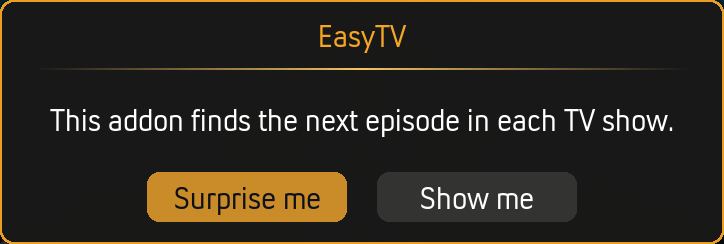
When you first launch EasyTV, you'll see the main dialog:
- From Add-ons menu
-
Go to Add-ons → Program add-ons → EasyTV
-
From home screen (recommended)
- Most skins let you add shortcuts to your home menu
-
Add EasyTV to your "Programs" or create a custom menu item
-
Via keyboard/remote shortcut
- You can map EasyTV to a button using Kodi's keymap editor
Initial Configuration
EasyTV works out of the box with sensible defaults, but you may want to customize:
Essential Settings to Consider
| Setting | Location | Why Configure? |
|---|---|---|
| When I open EasyTV | Settings → EasyTV | Pick what happens on launch: Show episode list, Play random playlist, or Ask me |
| Series premieres | Settings → Shows | Choose how to handle shows you haven't started: Skip, Mix in, or Only |
| Playlist content | Settings → Random Playlist | Add movies to your random playlists |
Accessing Settings
Method 1: From Kodi
- Navigate to Add-ons → Program add-ons
- Highlight EasyTV (don't click)
- Press C on keyboard or Menu on remote
- Select Configure
Method 2: From EasyTV
- Open EasyTV
- Open the context menu (C or long-press)
- Select settings-related options
Verifying Installation
Check the Background Service
The background service must be running for EasyTV to work:
- Go to Settings → Add-ons → My add-ons → Services
- Find EasyTV in the list
- Ensure it shows as Enabled
If it's disabled, click to enable it and restart Kodi.
Check Window Properties (Advanced)
For debugging, you can verify EasyTV is tracking shows:
- Enable Settings → Advanced → Debugging → Enable debug logging
- Open the log file at
special://profile/addon_data/script.easytv/logs/easytv.log - Look for entries showing shows being processed
Multi-Device Setup
If you run Kodi on multiple devices with a shared MySQL/MariaDB video database, EasyTV can sync watch progress across all of them. See Multi-Instance Sync for setup instructions.
Updating EasyTV
Manual Update
- Download the new version from Releases
- Install via Settings → Add-ons → Install from zip file
- Kodi will update the existing installation
Clone Updates
If you've created clones, they prompt you to update on next launch:
- Launch the clone after updating the main EasyTV addon
- EasyTV detects the version mismatch
- A prompt asks "Would you like to update the clone now?"
- Click Yes and restart Kodi
Uninstallation
- Go to Settings → Add-ons → My add-ons → Program add-ons
- Select EasyTV
- Click Uninstall
This removes: - The addon files - The background service
This preserves:
- Your addon data (settings, logs) in special://profile/addon_data/script.easytv/
To fully remove all data, manually delete the script.easytv folder from your addon_data directory.
Next Steps
- Browse Mode: Learn to navigate the episode list
- Random Playlist Mode: Set up lean-back viewing
- Settings Reference: Explore all configuration options